Add or Update Task Manager
3 min read
This process shows how to add or update the Task Manager for a task in an Oracle Fusion Cloud Project Financial Management project. It is used when a task needs a responsible person assigned, or when an existing assignment must be changed. You begin by finding the project from the My Projects screen, then open its financial project plan and expand the task hierarchy to reach the task details. From there you search for a person by name, select them, and save the assignment. By the end, you will have updated the task manager and closed the project plan.
Process steps
Step 1
Hello, this video covers the process of adding or updating a task manager in Oracle Fusion Cloud Project Financial Management.
Step 2
Once logged in, click on the Home icon to navigate to the home page.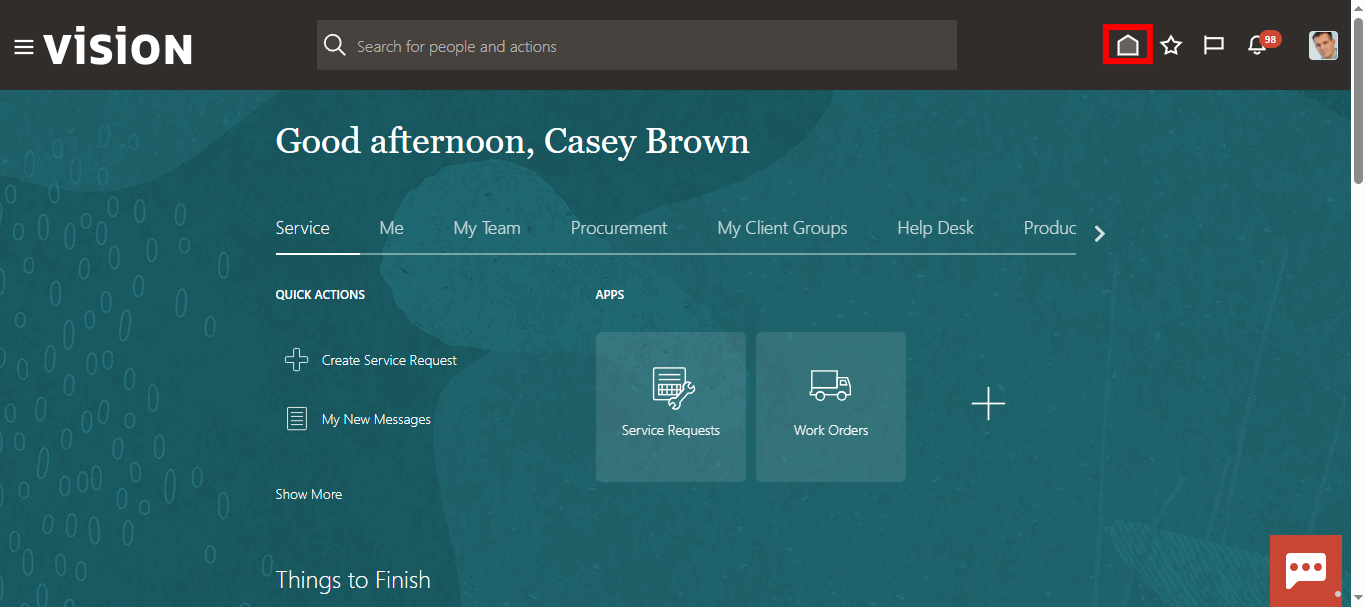
Step 3
From the home page, click the arrow button on the navigation bar to navigate to the Projects menu.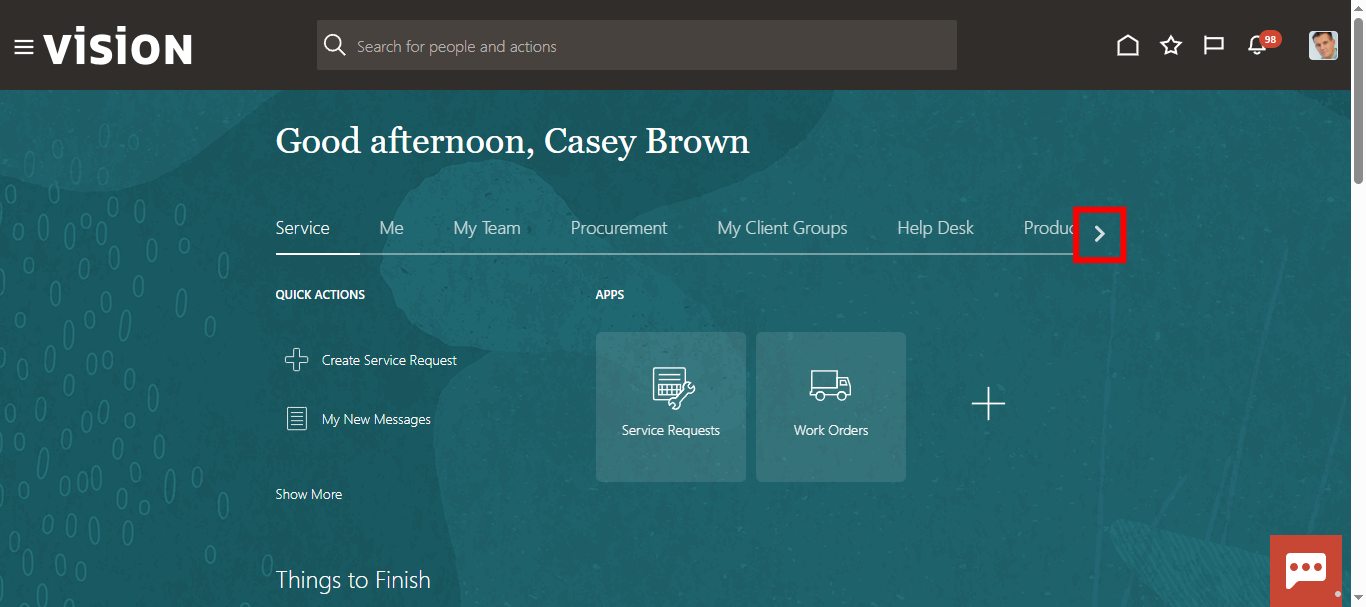
Step 4
From the Projects menu, click on the Project Financial Management sub-menu to begin searching for projects.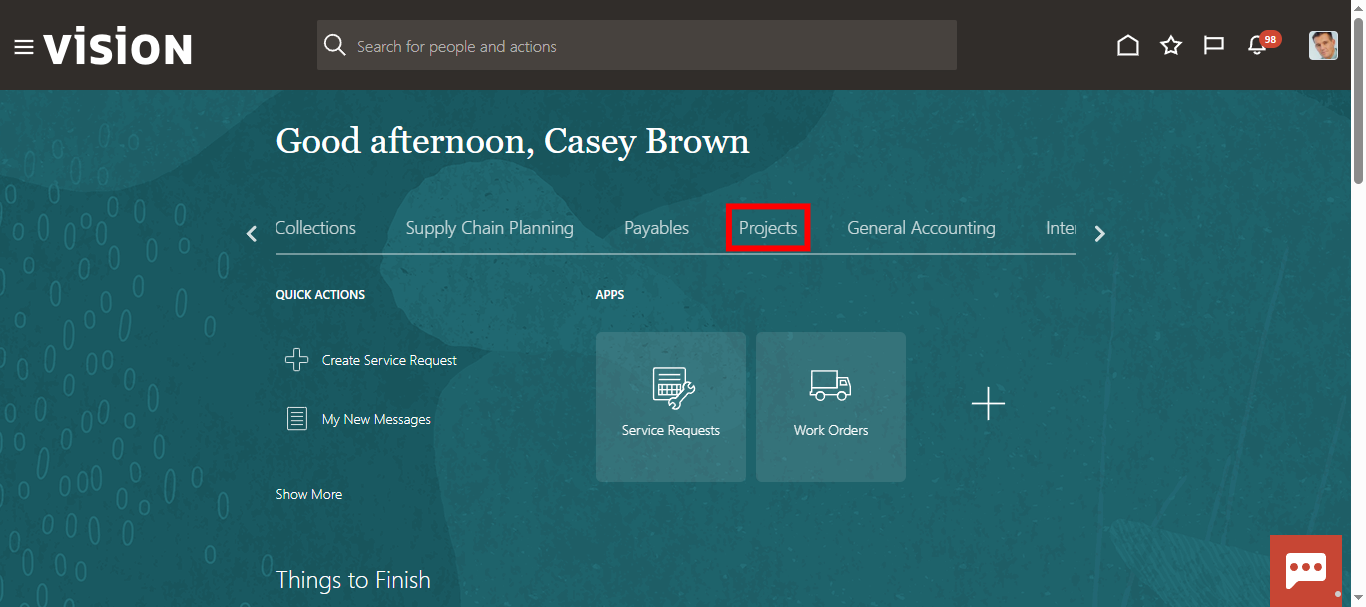
Step 5
From the Projects menu, click on the Project Financial Management sub-menu to begin searching for projects.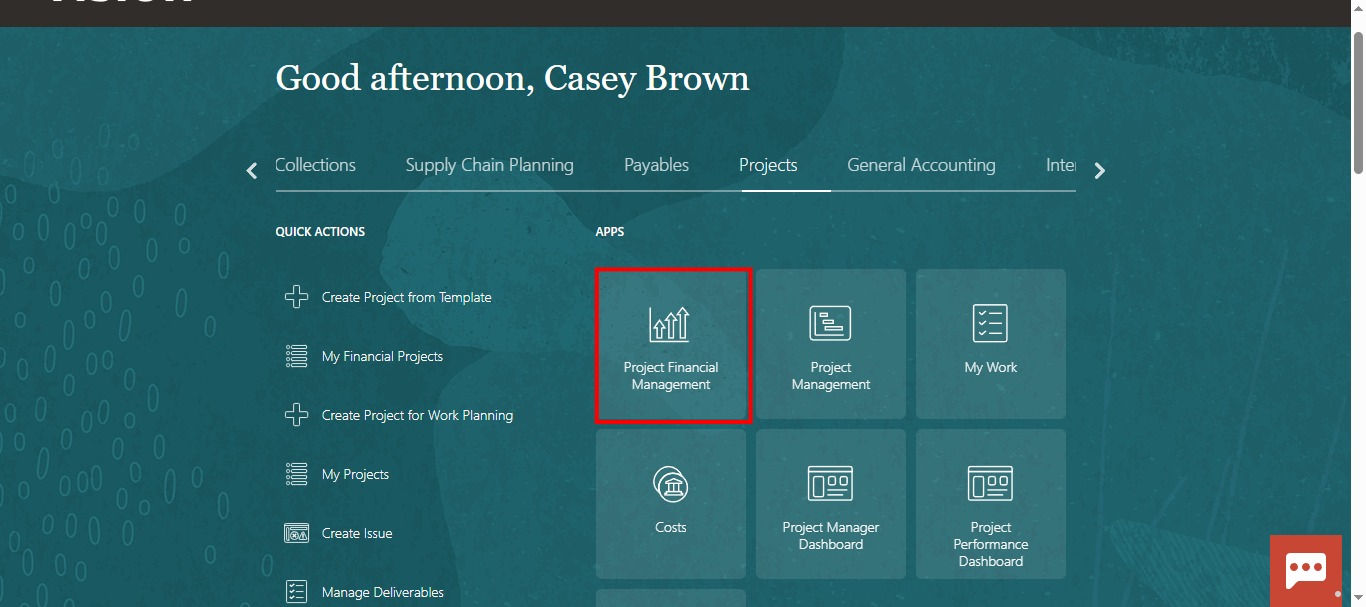
Step 6
On the My Projects screen, click on the Project Name or Number field to search for the required project.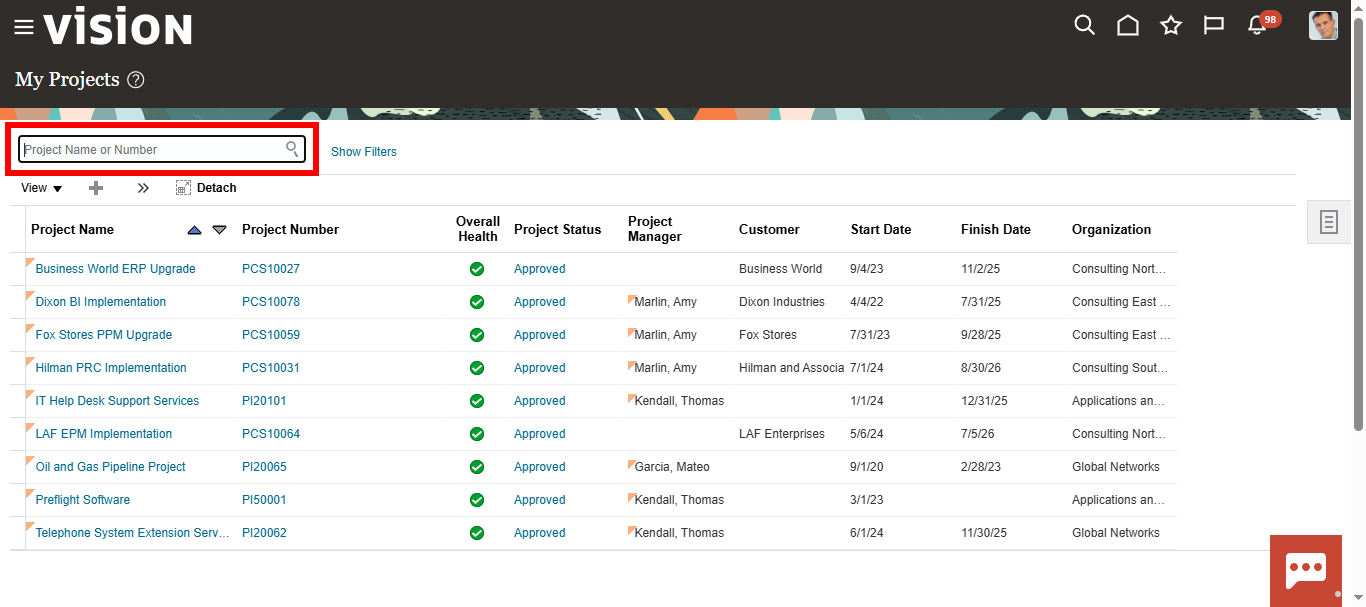
Step 7
In the search field, enter the Project Name or Number in the designated field and select the desired project from the List of Values that appears.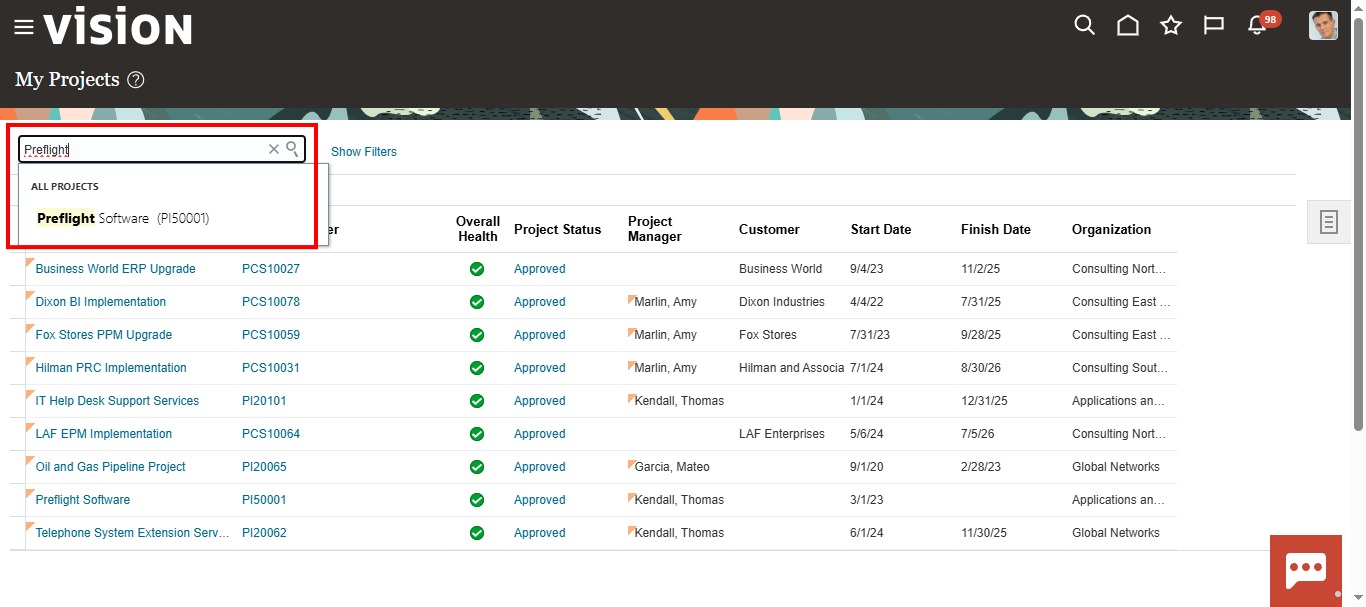
Step 8
After entering the project details, click the Search icon to execute your search query.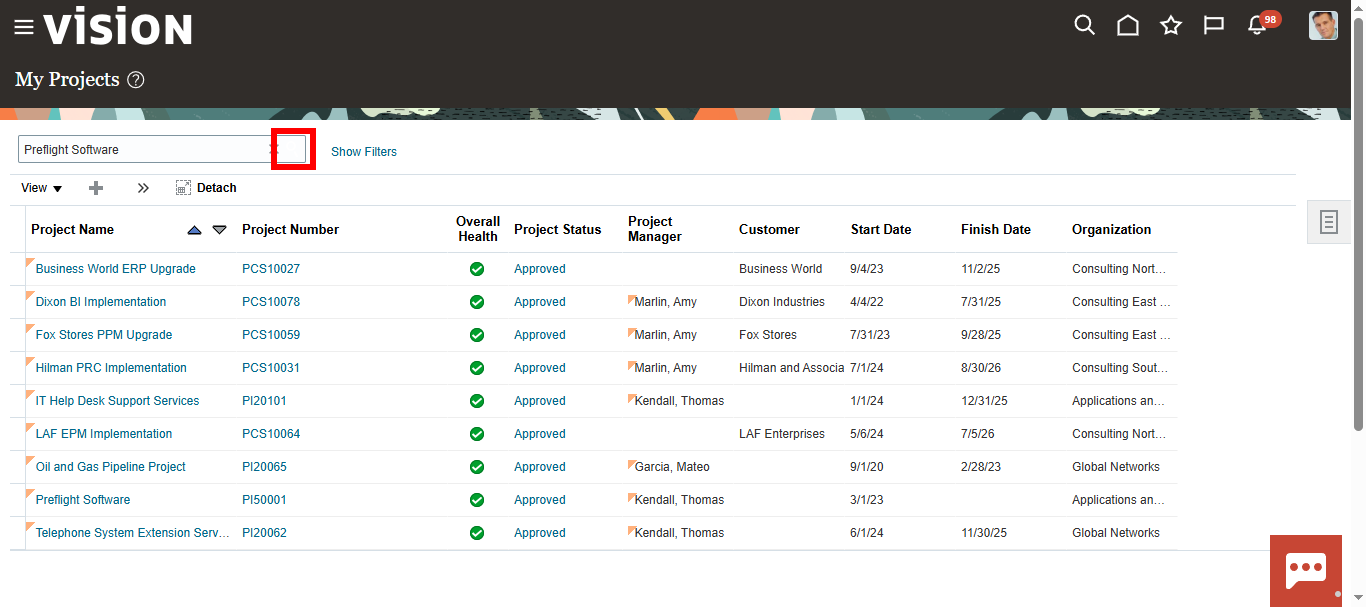
Step 9
From the search results displayed, click on the Project Name hyperlink to which you want to add or update the Task Manager.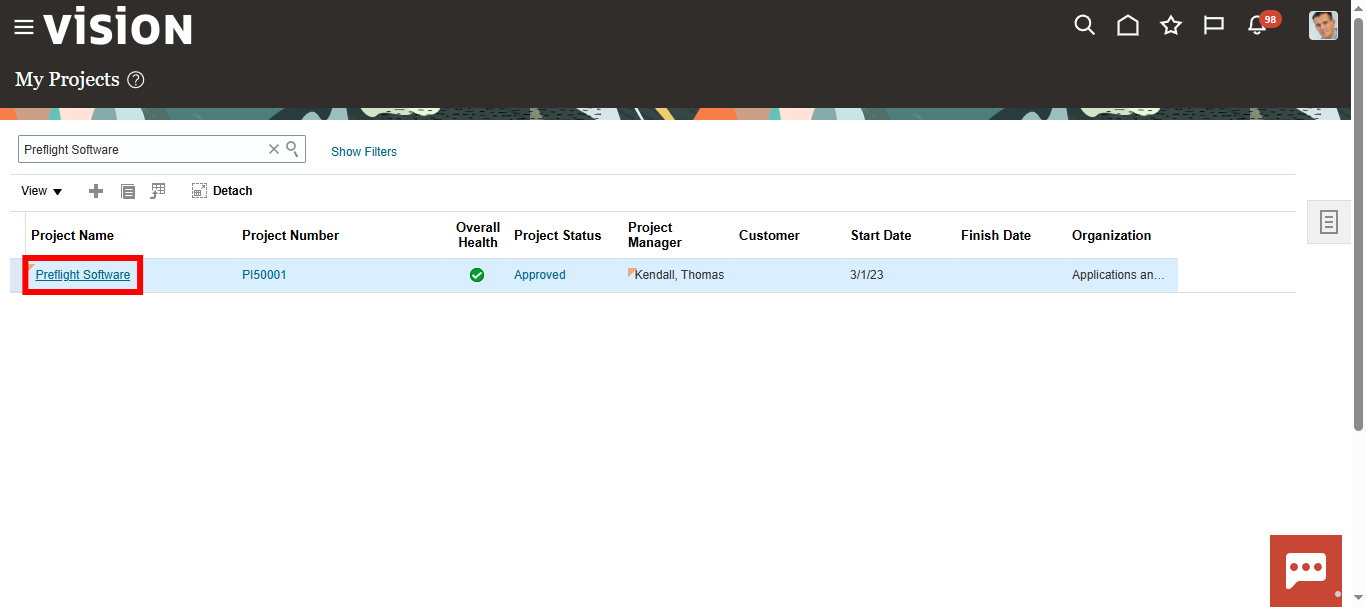
Step 10
After clicking on the Project Name hyperlink, select Manage Financial Project Plan to proceed with managing the project tasks.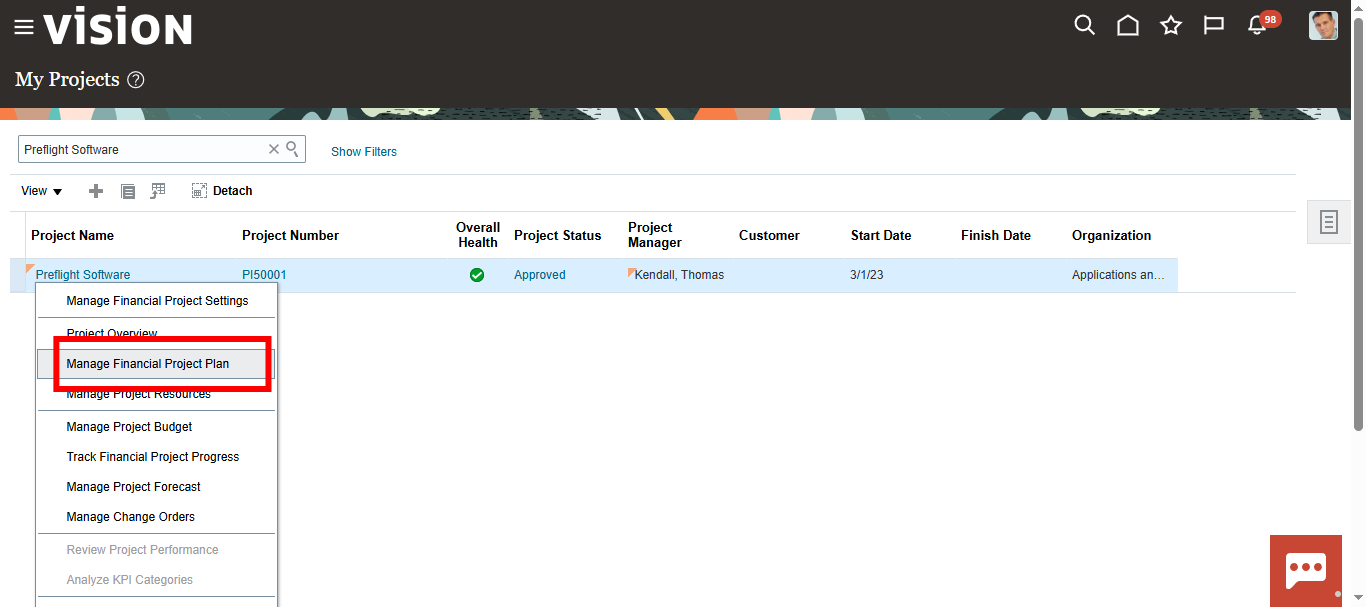
Step 11
Once on the Manage Financial Project Plan page, click on the View button to access the view options.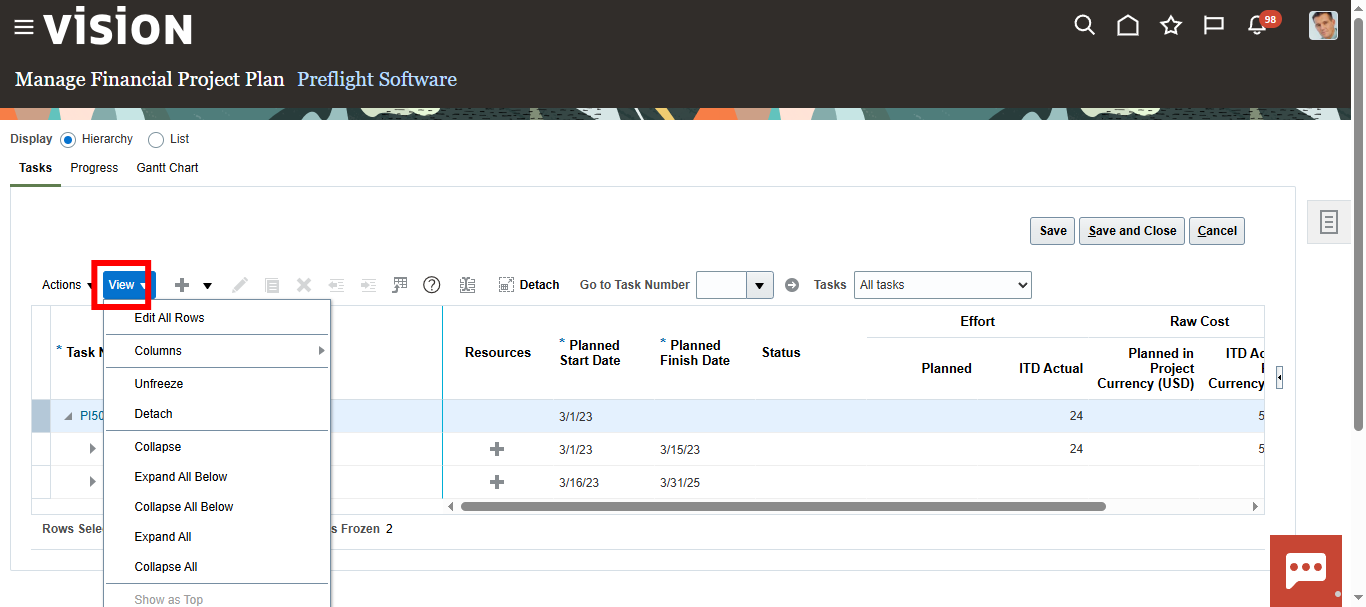
Step 12
From the View menu, select the Expand All option to display all tasks in the project hierarchy.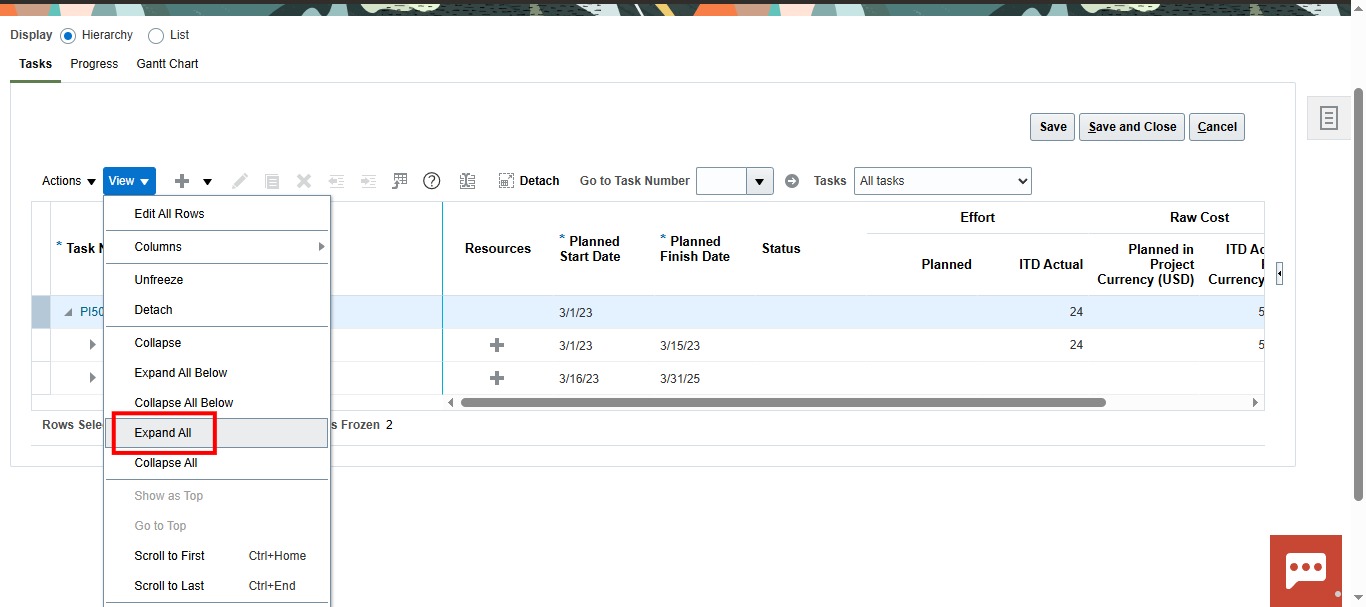
Step 13
After expanding the task structure, scroll to the right and click the Task Details button to access detailed task information.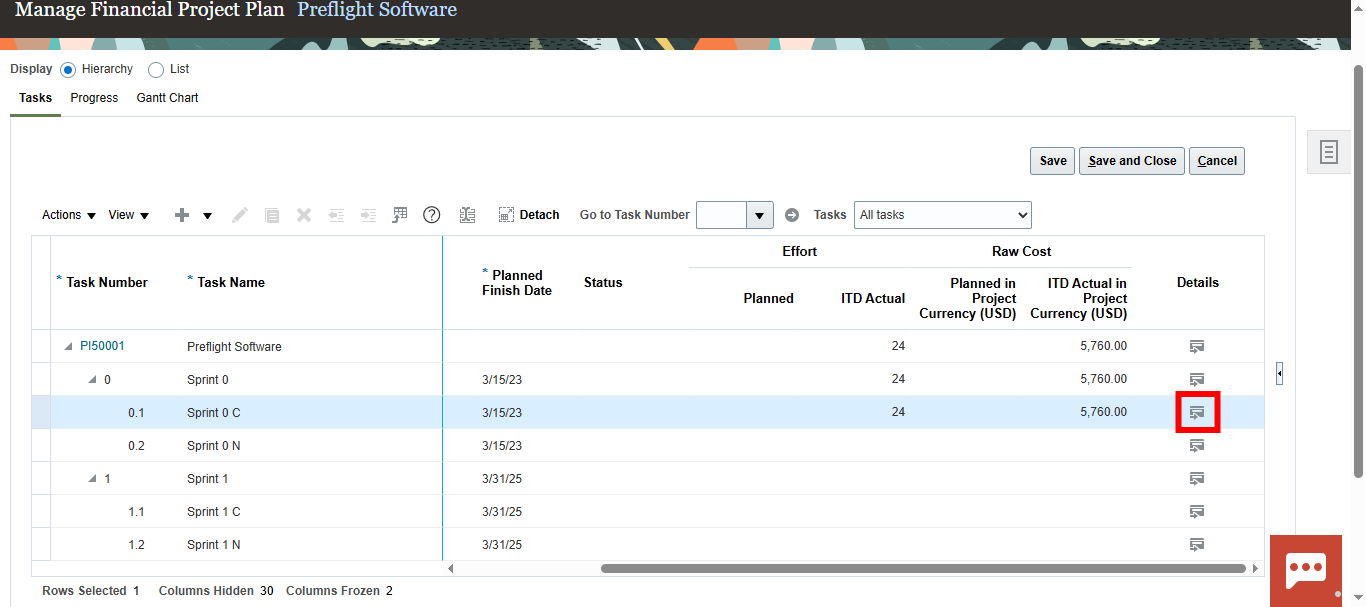
Step 14
In the Task Details section, click on the dropdown button next to the Task Manager field.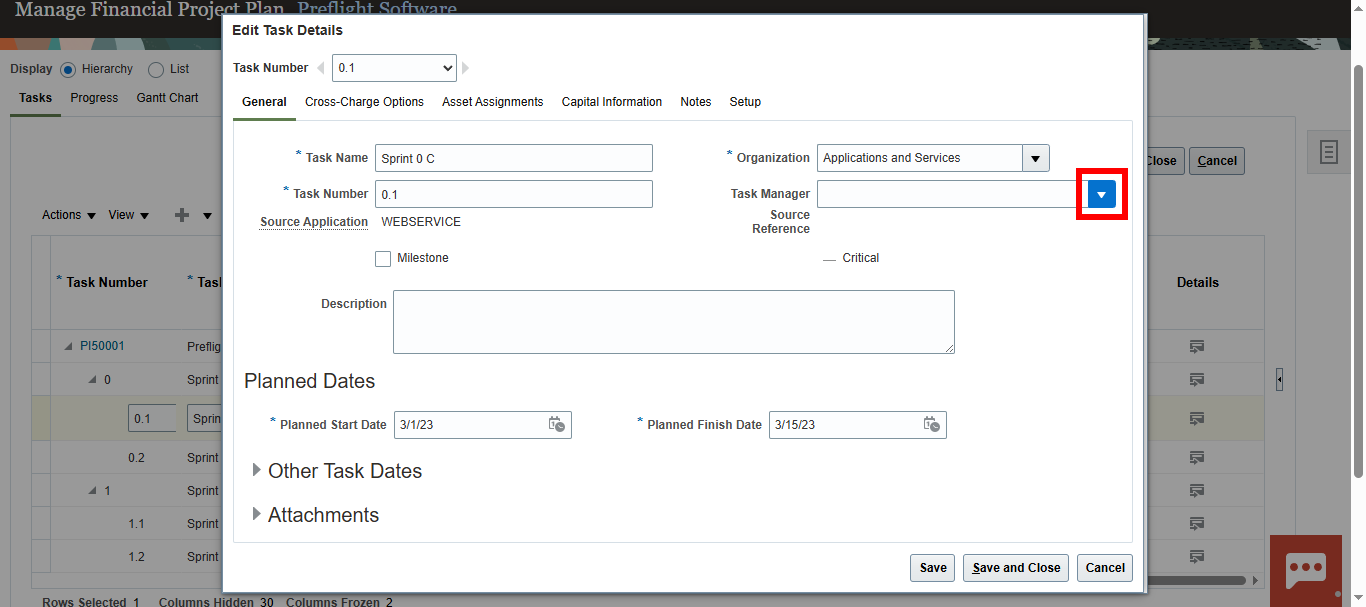
Step 15
From the Task Manager dropdown, click on the Search hyperlink to search for available person.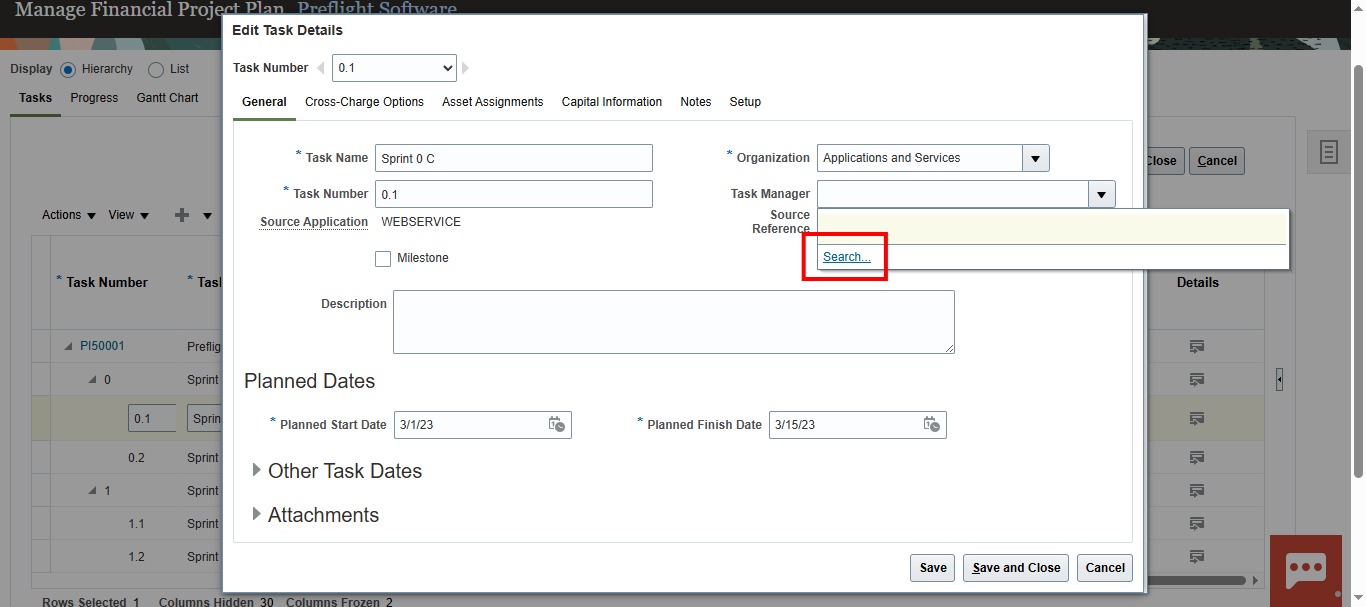
Step 16
In the person search window, note that you can search for the person using parameters such as Name, Job, or Email.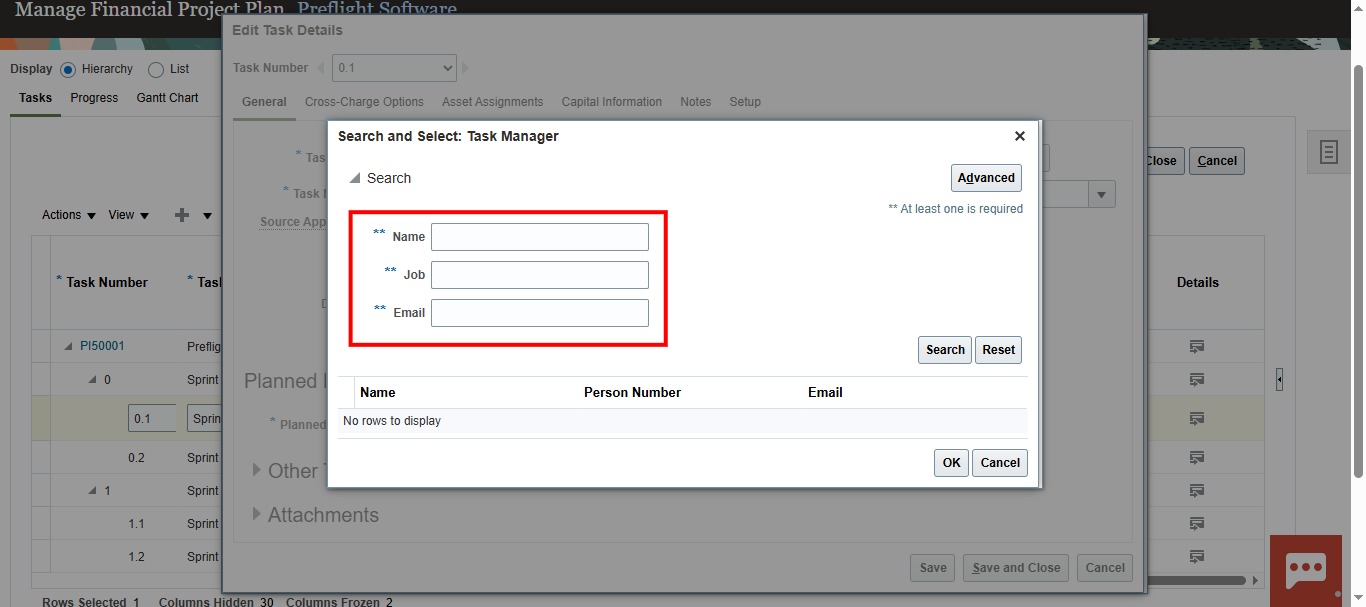
Step 17
To search for a task manager, click on the Name field and enter the person's name you wish to add as a Task Manager.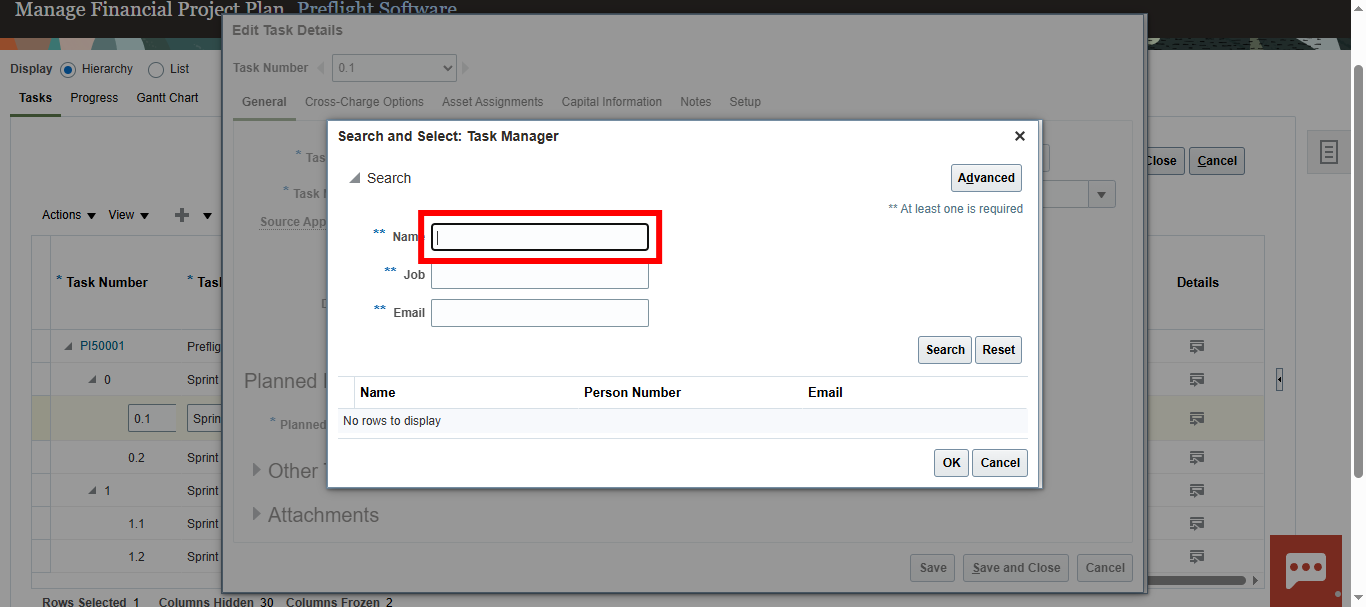
Step 18
After entering the person's name, click on the Search button.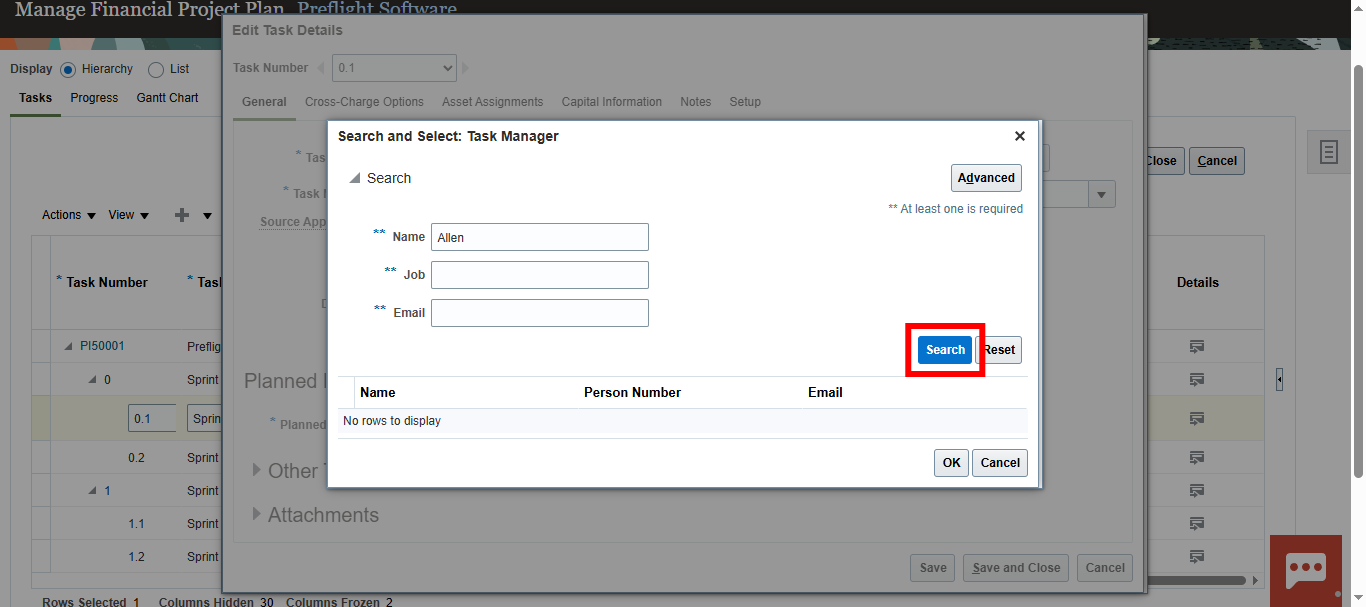
Step 19
From the search results displayed, select the appropriate person you want to add as a Task Manager from the search results.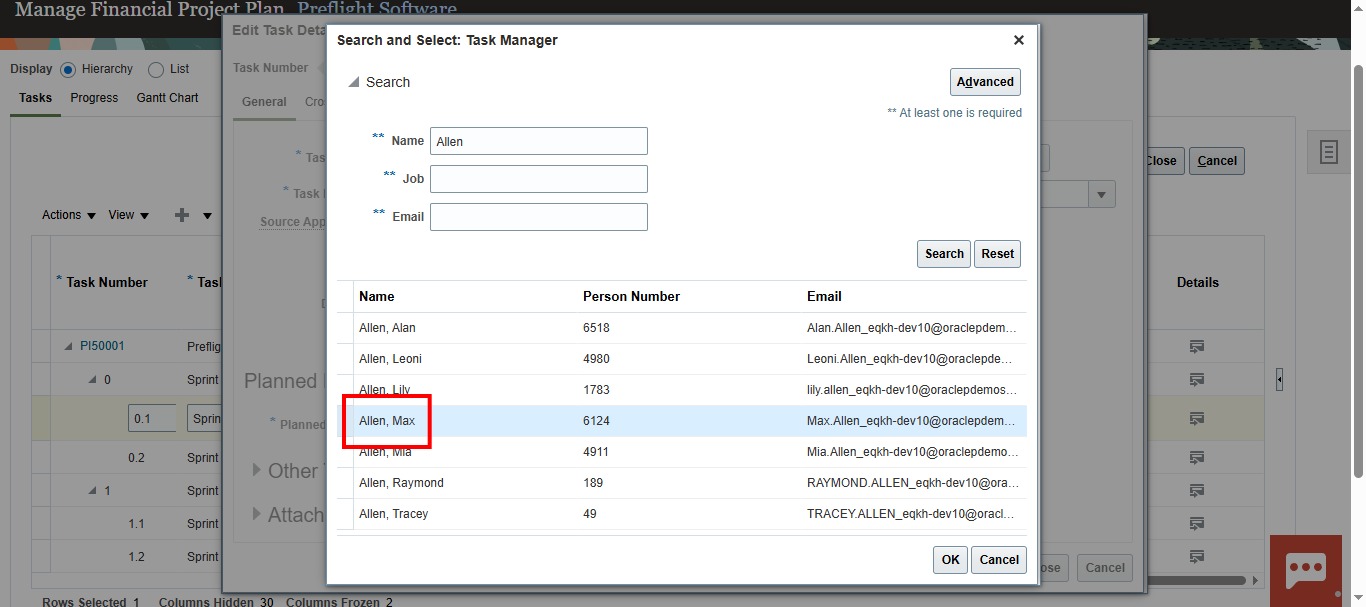
Step 20
Once the person is selected, click on the OK button to confirm your choice and return to the task details screen.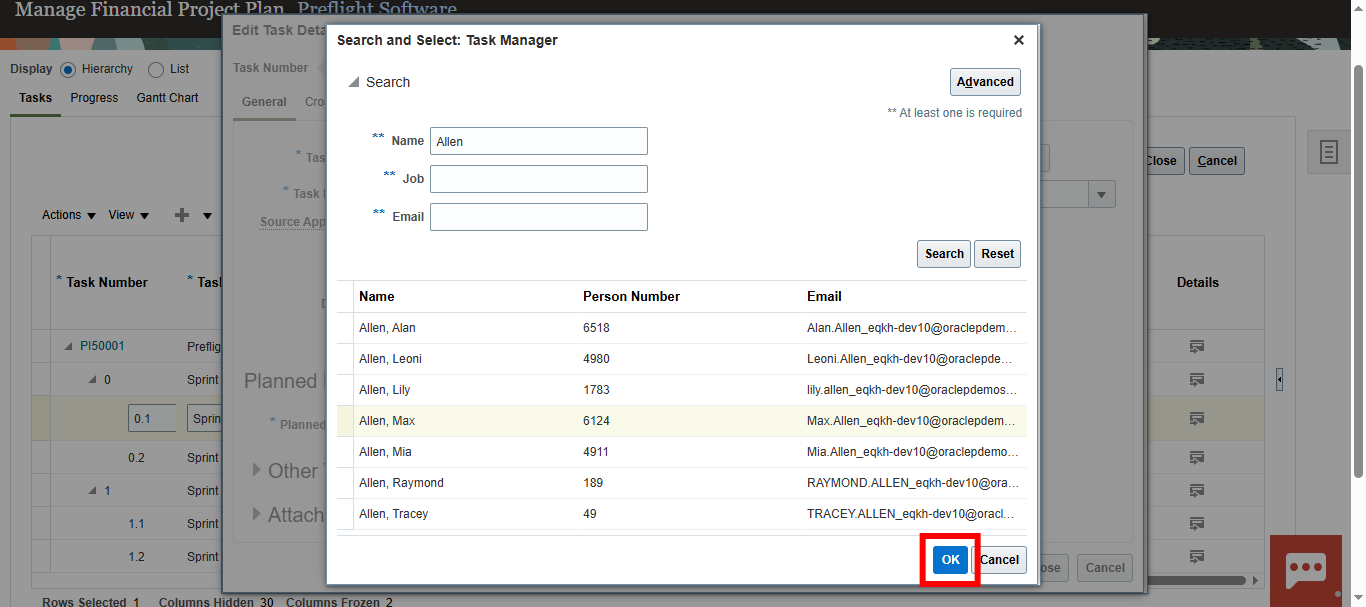
Step 21
After adding the Task Manager, click on the Save and Close button to save the task manager assignment and return to the project plan.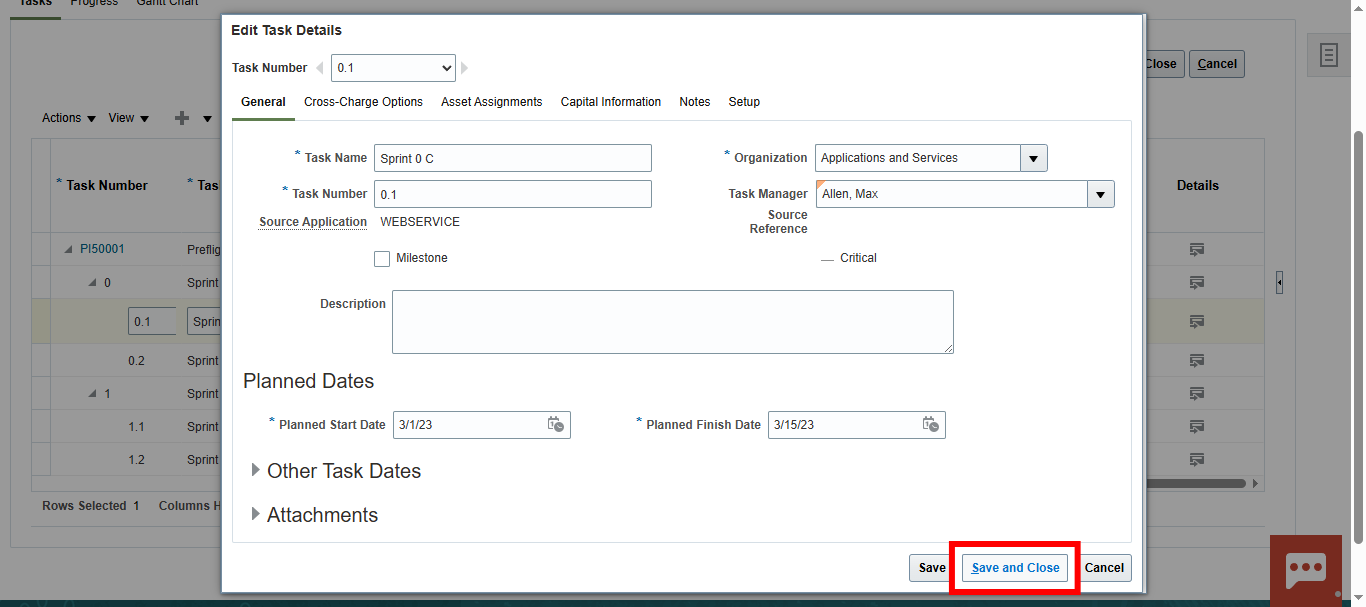
Step 22
Once all changes are saved, click on the Save and Close button to finalize the process and exit the Manage Financial Project Plan page.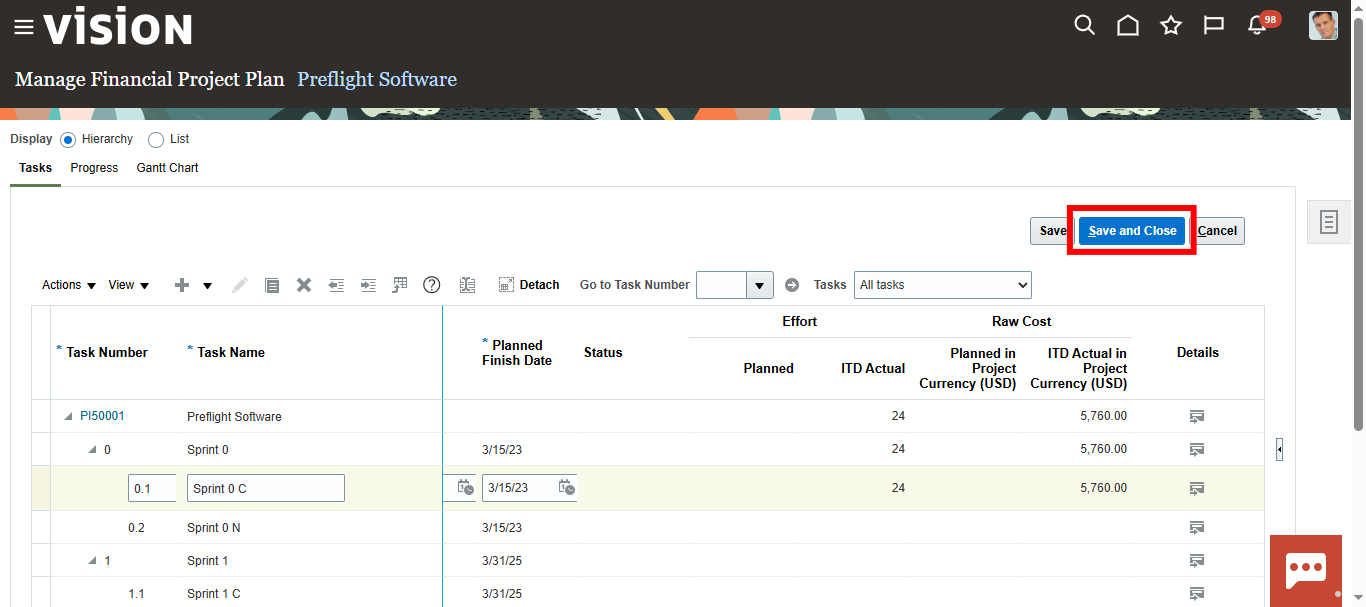
Step 23
Thank You! In this video, you learned how to add or update a task manager in Oracle Fusion Cloud Project Financial Management.