Enabling CIS on the Supplier
4 min read
This process shows how to enable the CIS tax setup for a supplier in the Oracle Fusion Procurement Suppliers workbench. It is used when a supplier needs tax reporting and withholding tax turned on at the profile level, and later at the site level. You will search for and edit the supplier, complete the Income Tax tab with the taxpayer country, taxpayer ID, reporting type and withholding tax group, and submit the change request for approval. After approval, you will enable withholding at the supplier site, save the changes, and submit them to finish the setup.
Process steps
Step 1
Hello, This guide covers the topic of initiation of CIS tax process in the supplier portal in Oracle Fusion's Procurement.
Step 2
To begin, Click on the Navigator icon to access Procurement module.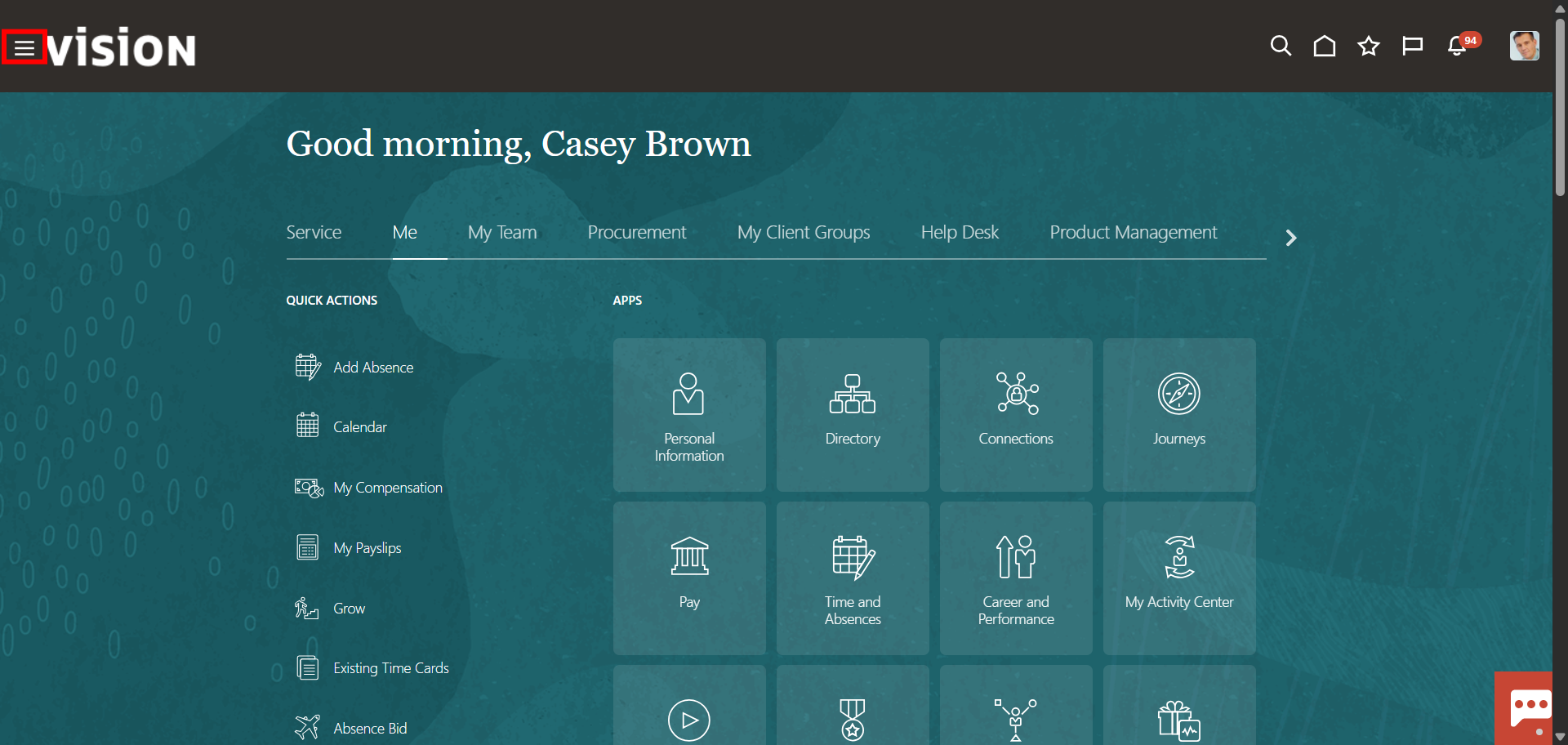
Step 3
Once the Navigator opens, expand the Procurement module by clicking on the downward arrow next to it.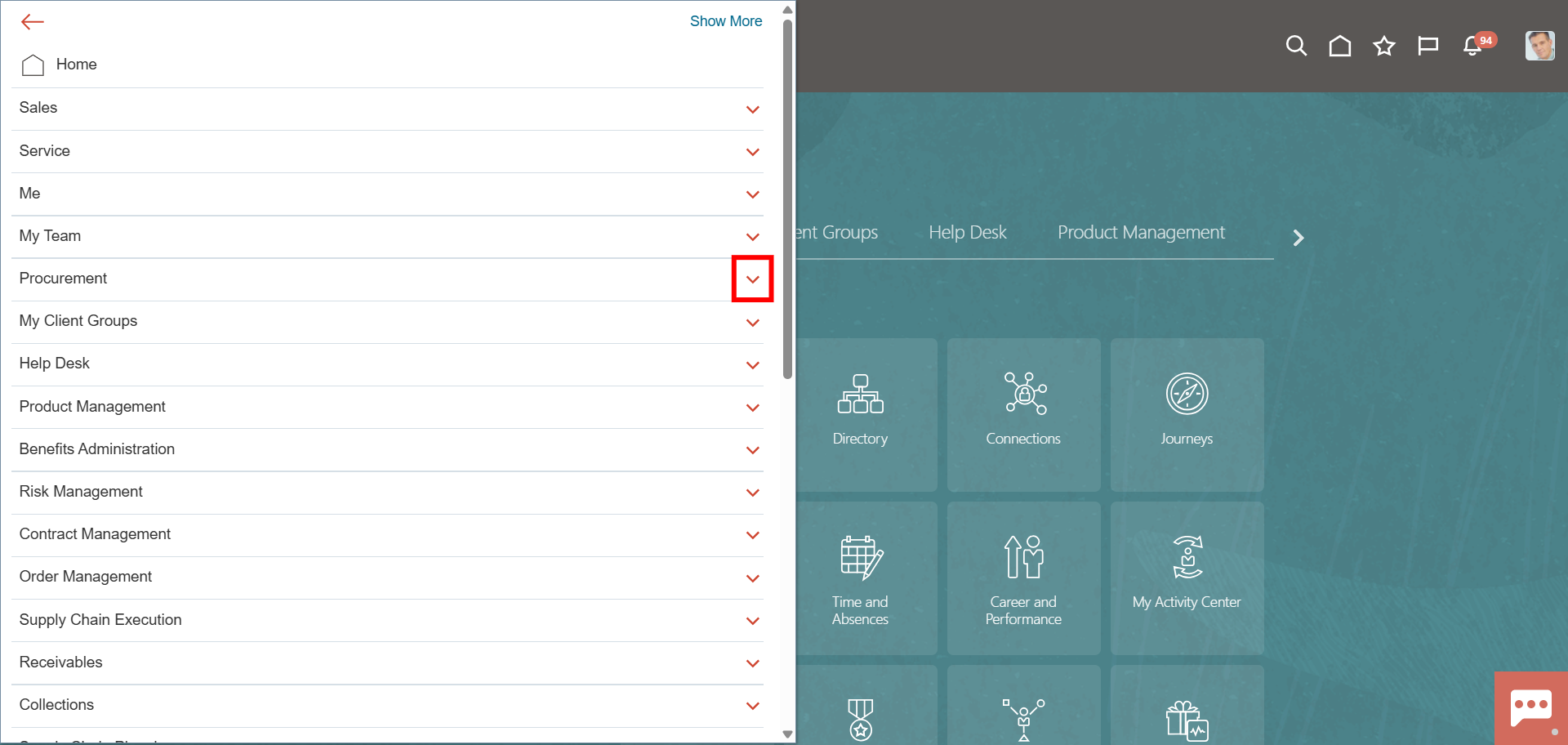
Step 4
From the expanded Procurement module, select the Suppliers submenu to access supplier management functions.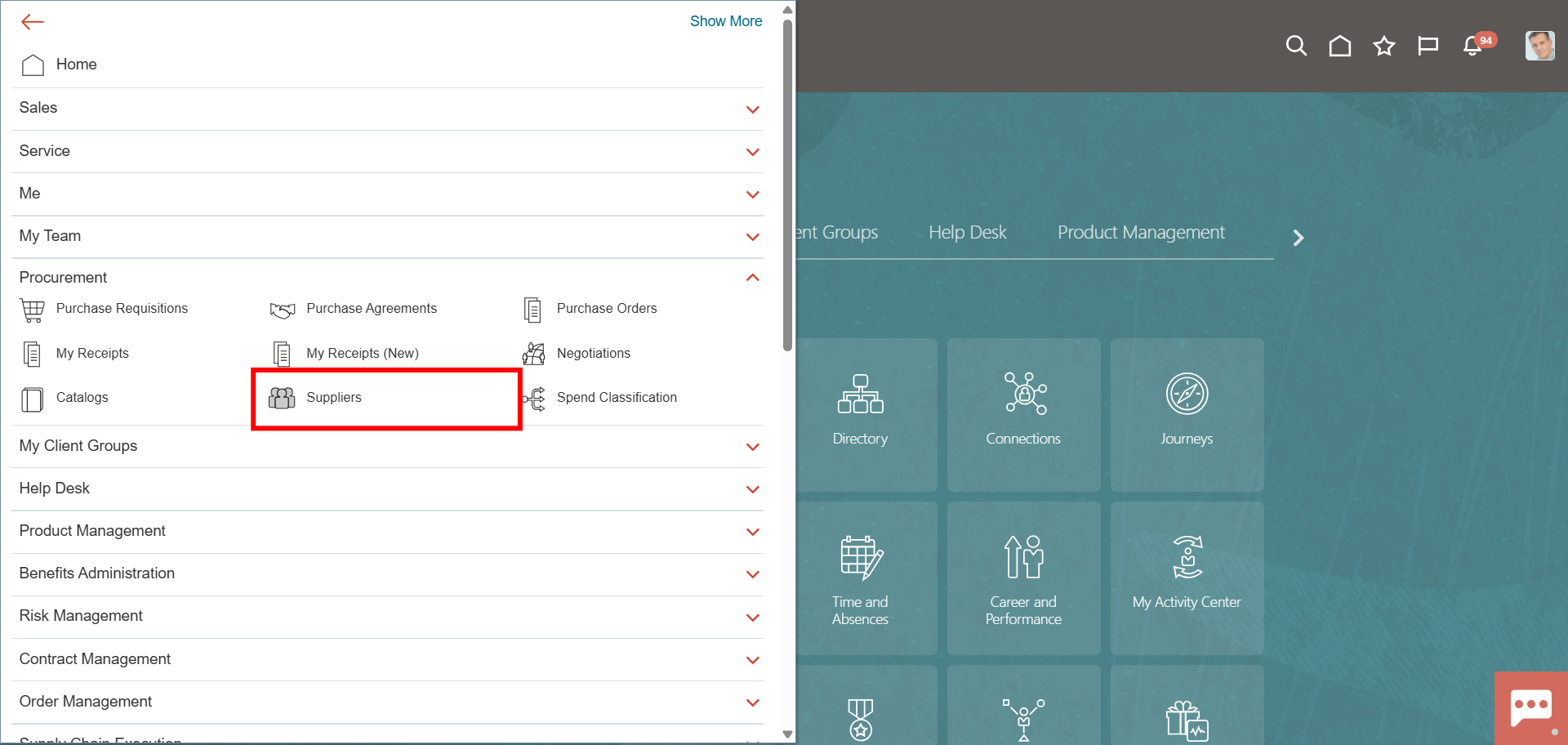
Step 5
Once the Suppliers page opens, click on the magnifying glass icon to search for a supplier record.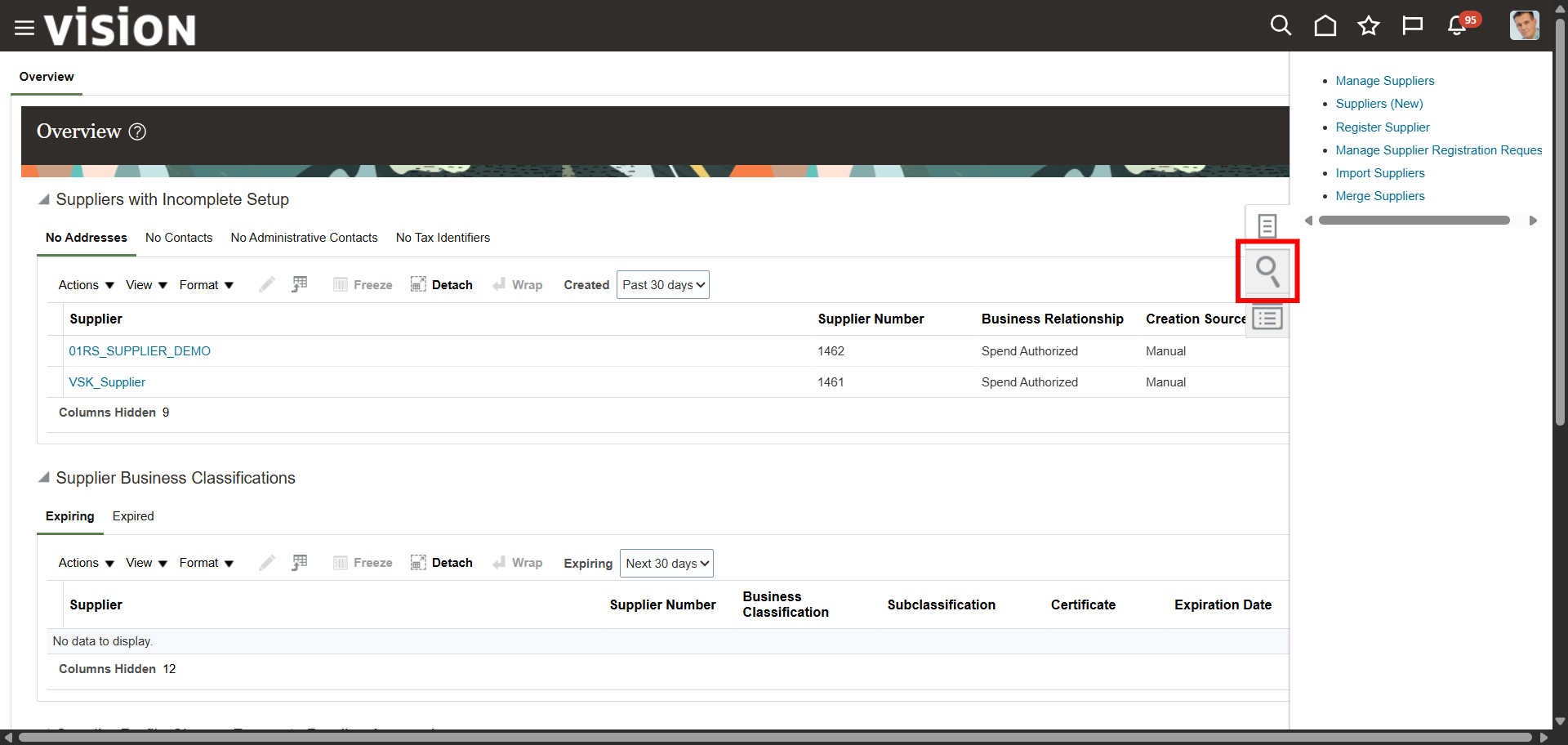
Step 6
Then, enter a supplier name in the search field.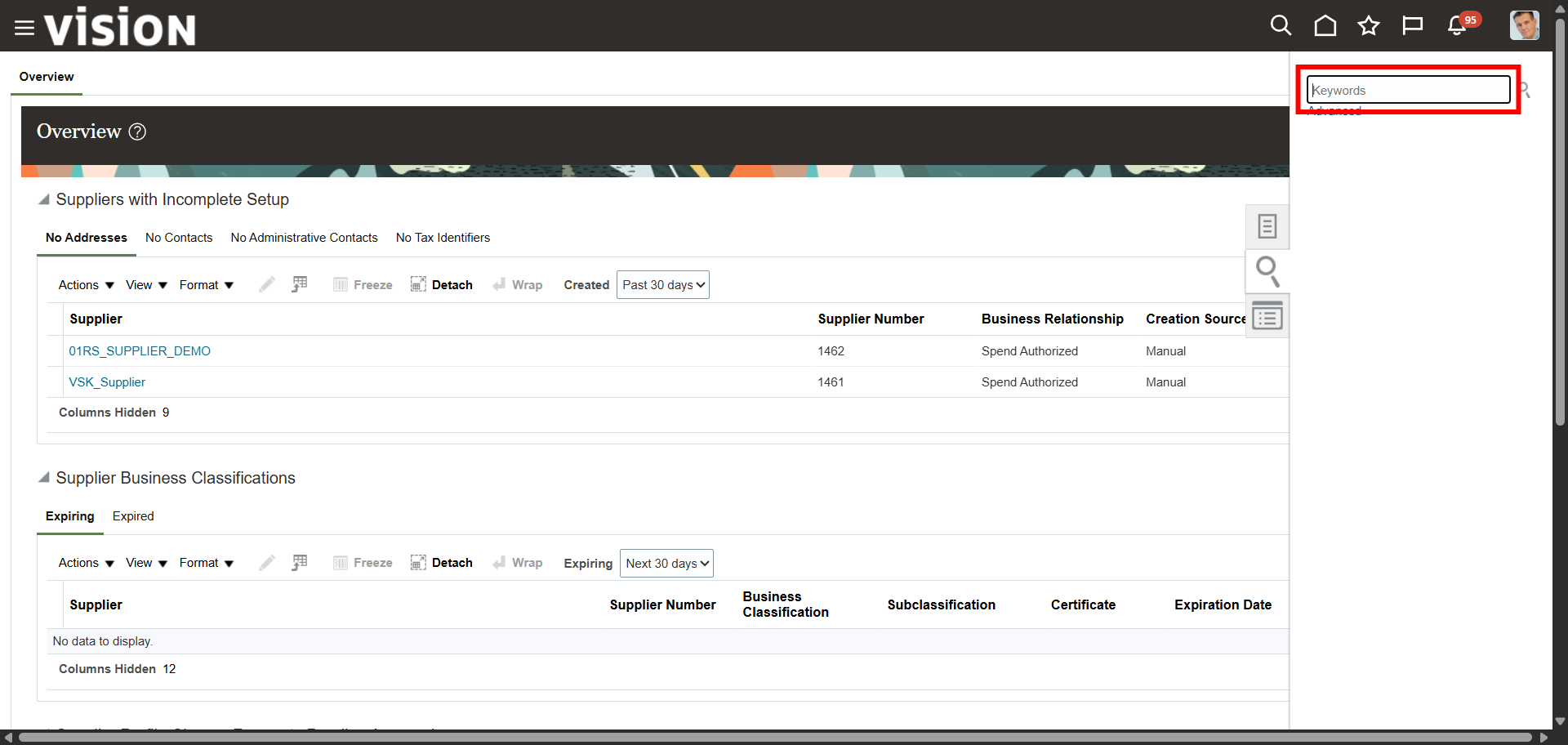
Step 7
Once the supplier record is displayed in the search results, click on the Edit button to open it in edit mode for making modifications.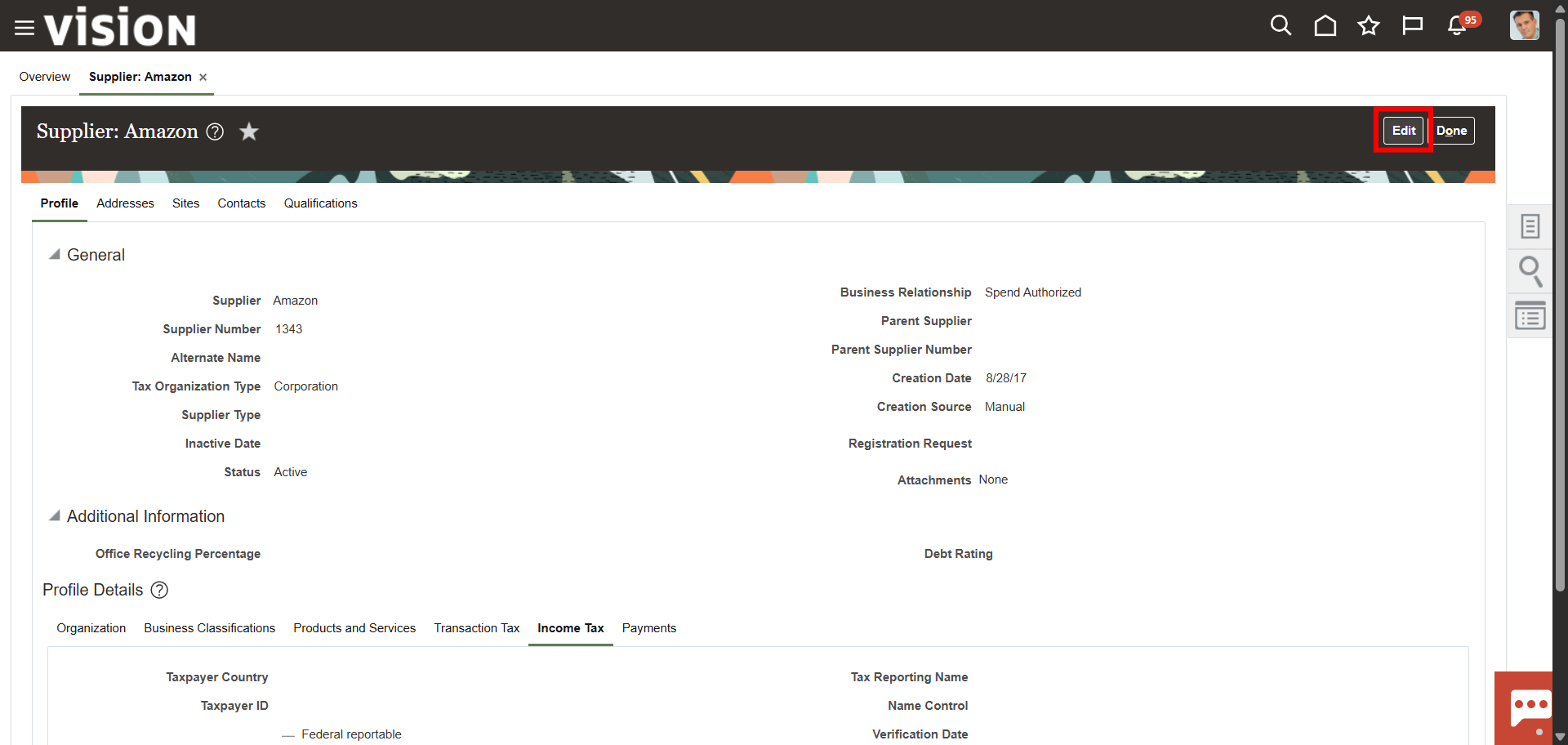
Step 8
In the Edit Supplier page, navigate to the Income Tax tab under the Profile section, where you can enter withholding tax details.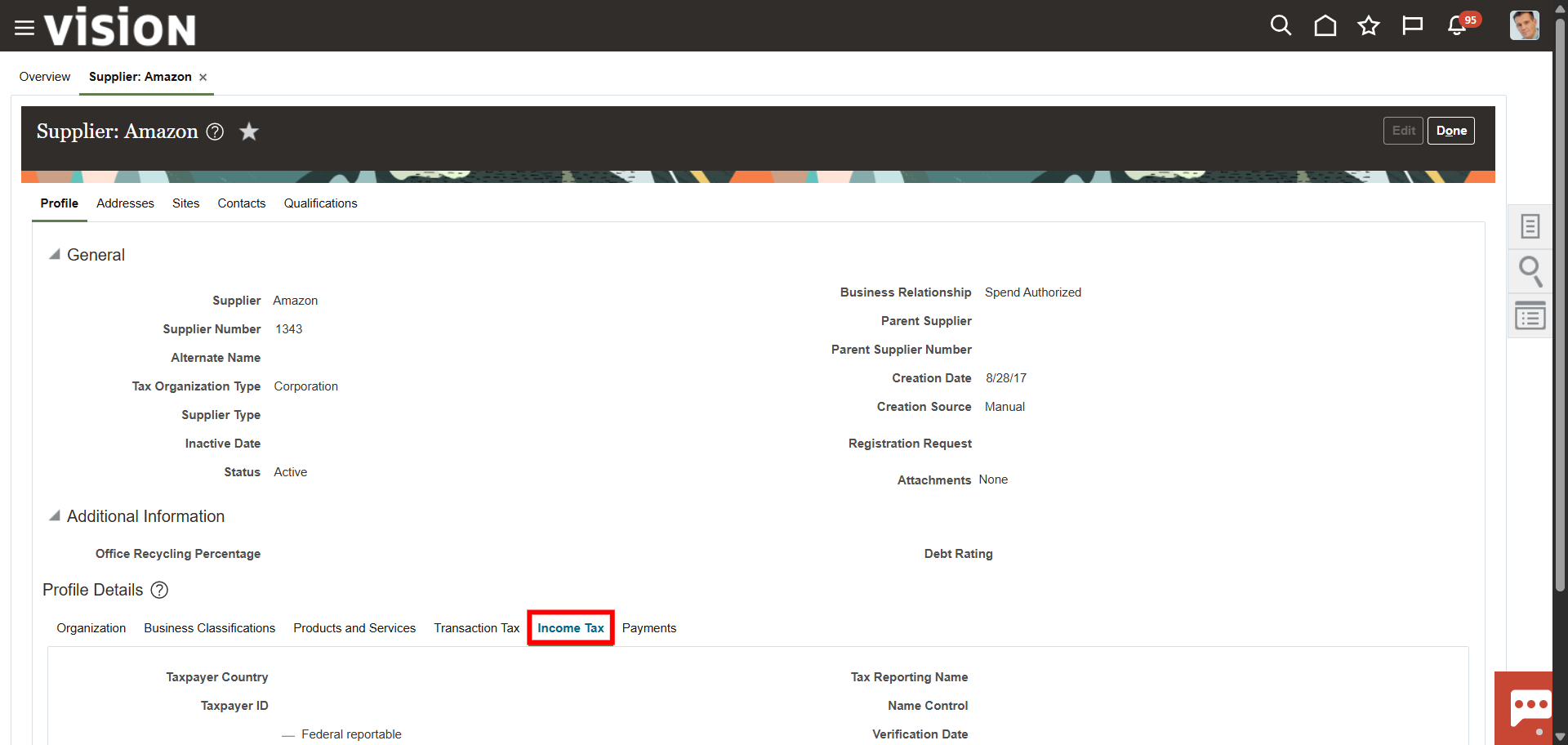
Step 9
In the Income Tax tab, choose the supplier country from the dropdown menu next to the Taxpayer Country field.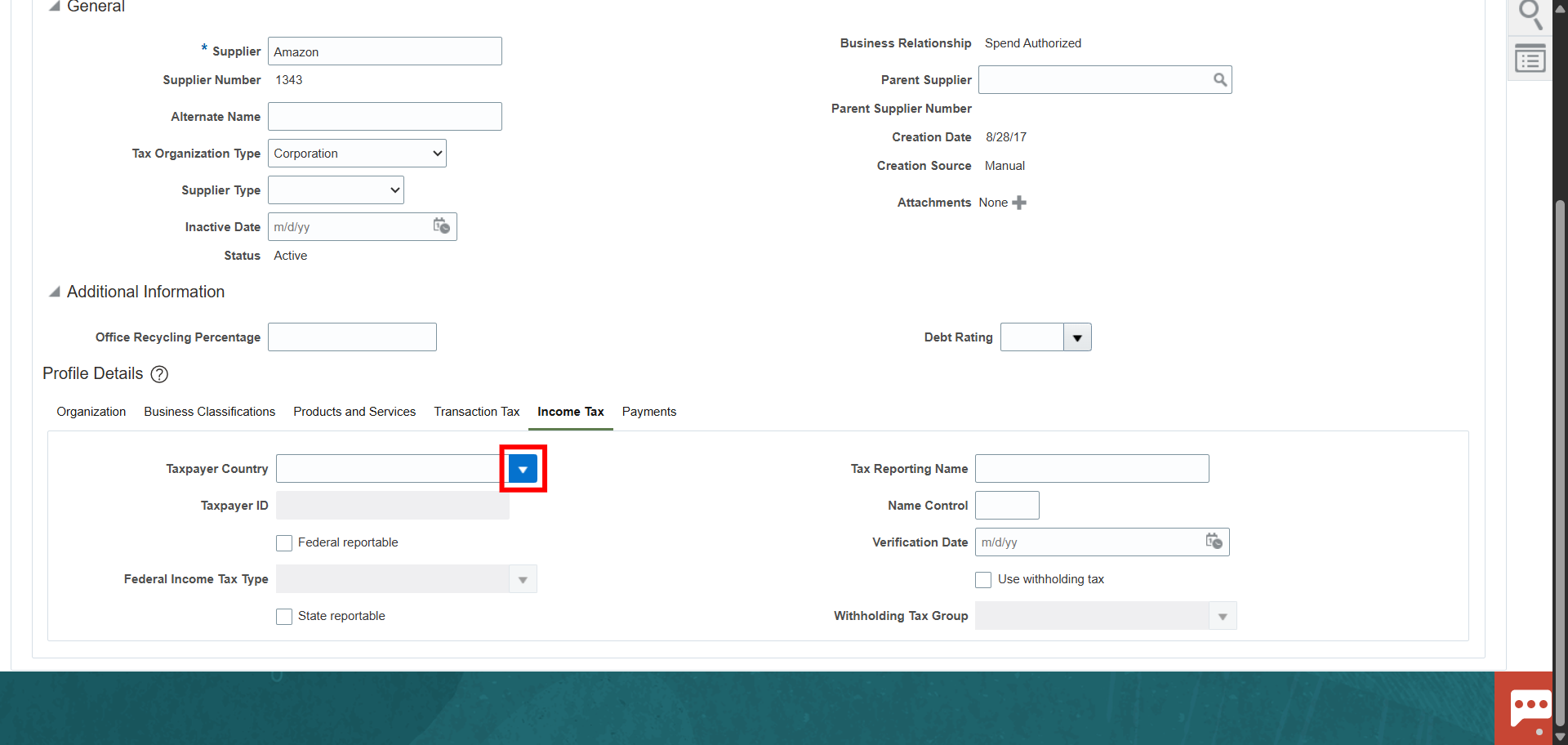
Step 10
Following this, fill in the Taxpayer ID field with the supplier's tax identification number for proper tax reporting.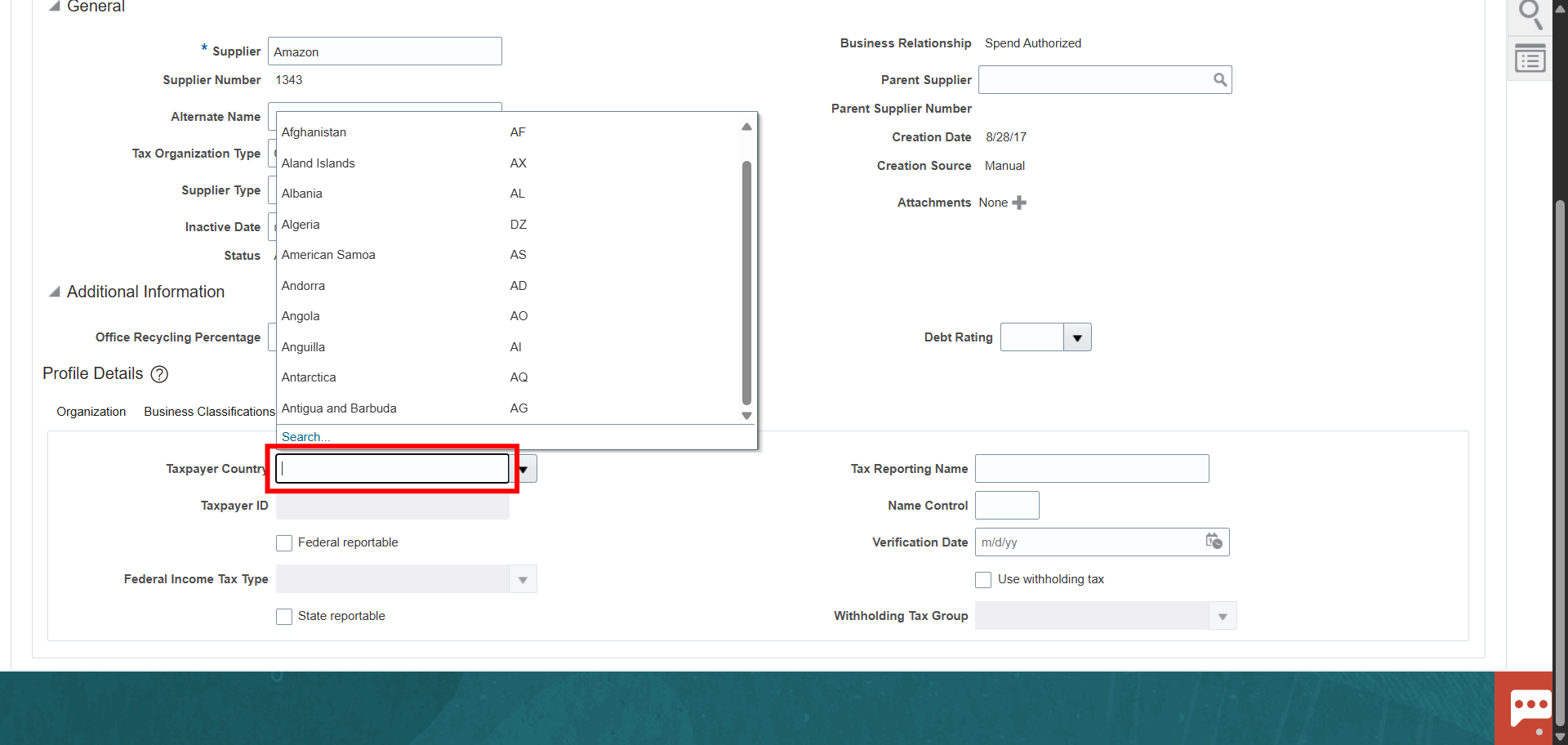
Step 11
If the reporting is to be done to the Federal authorities, check the box next to Federal to enable federal reporting.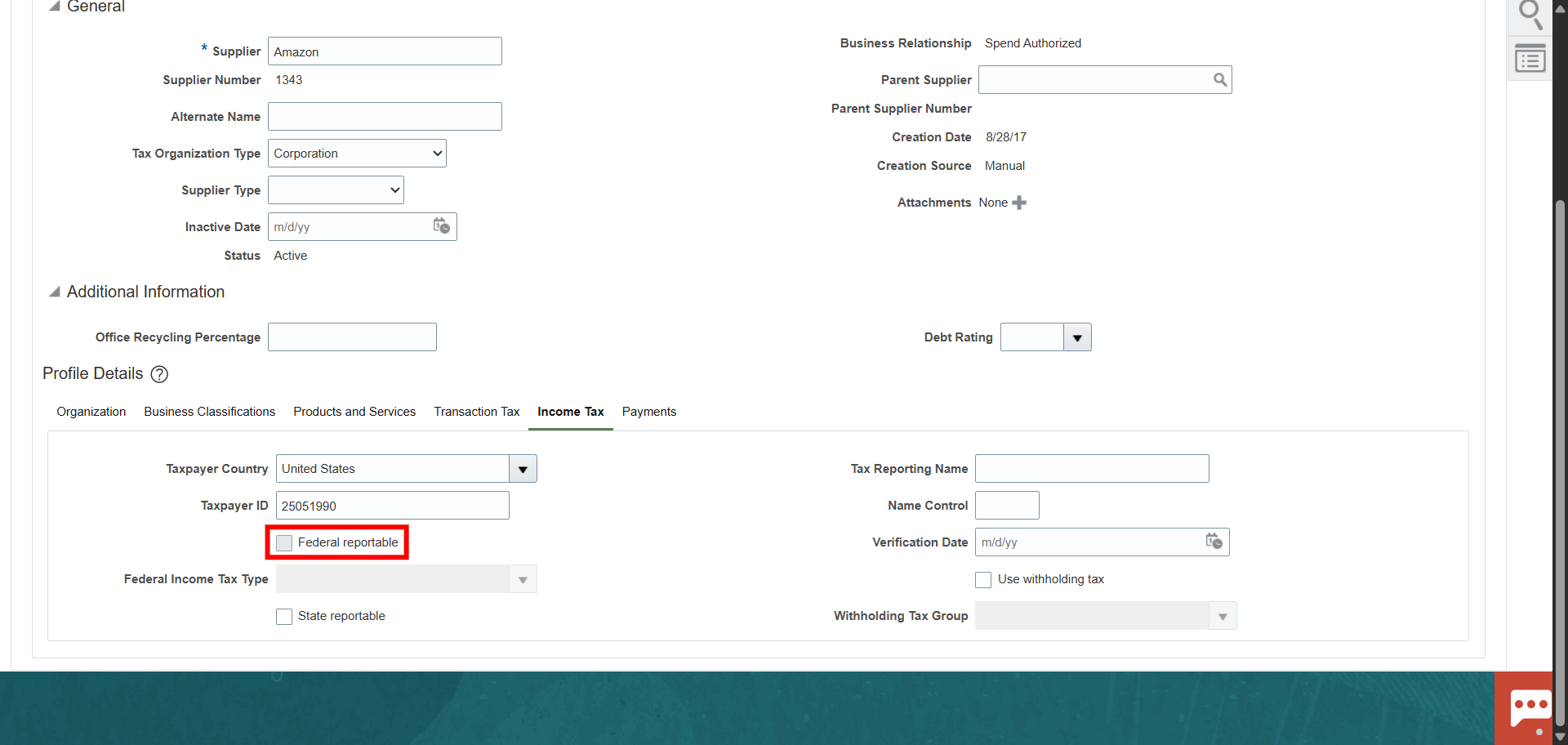
Step 12
Alternatively, if the reporting is to be done to the State authorities, check the box next to State reportable, respectively.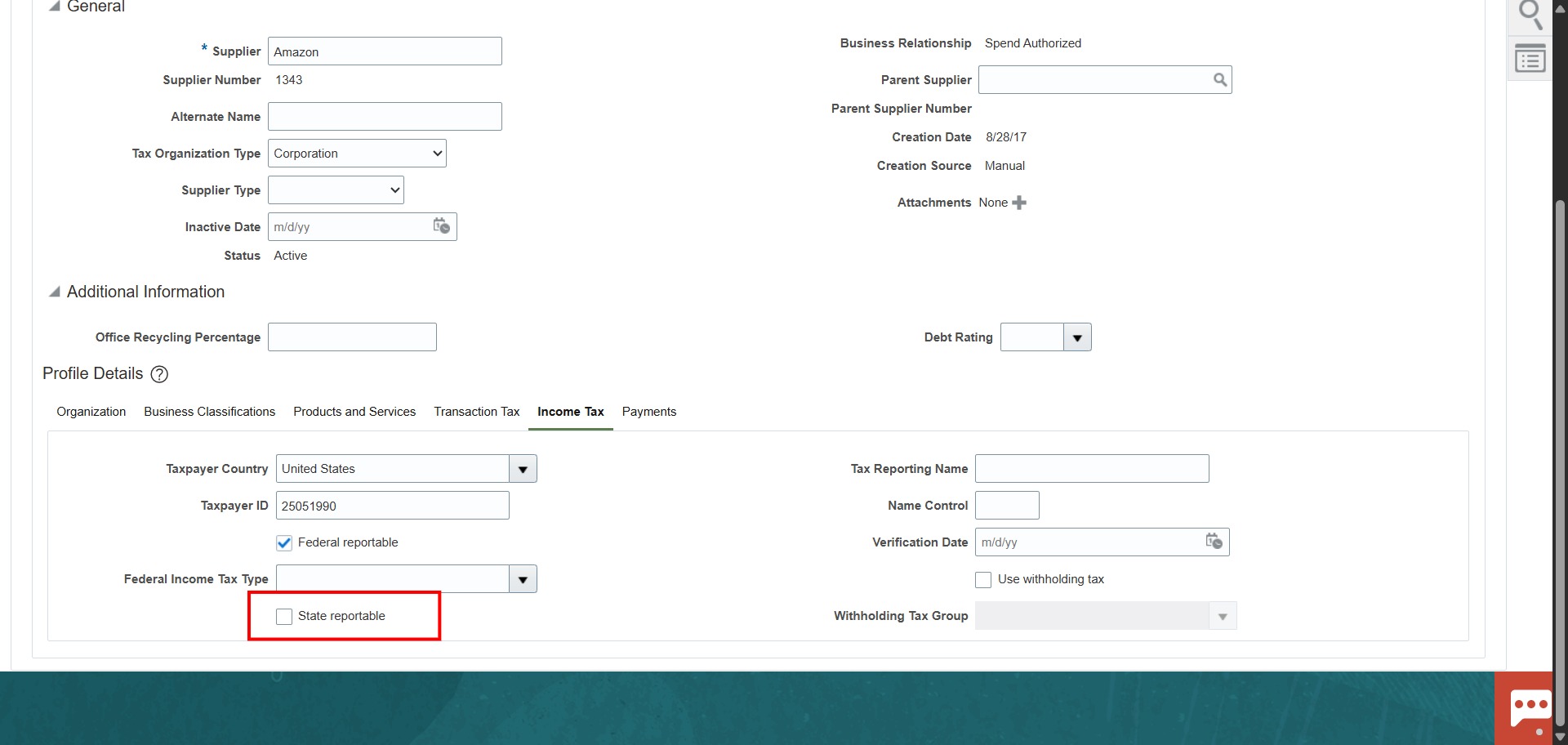
Step 13
For this example, presuming that the reporting is to be done to the Federal authorities, the Federal reportable checkbox is checked.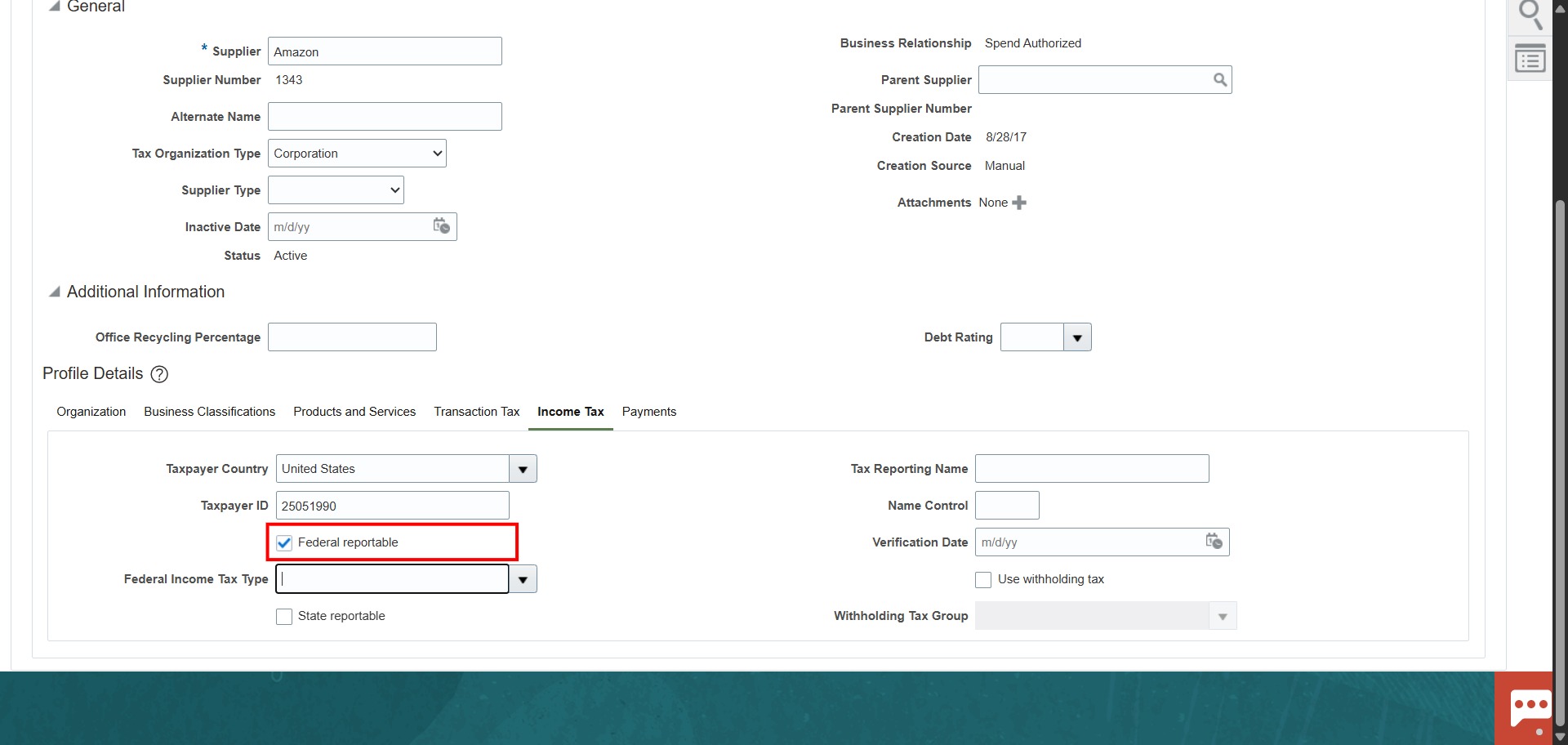
Step 14
Once the Federal reportable option is selected, select the type of federal income tax for reporting purposes from the list of values, if applicable to your requirements.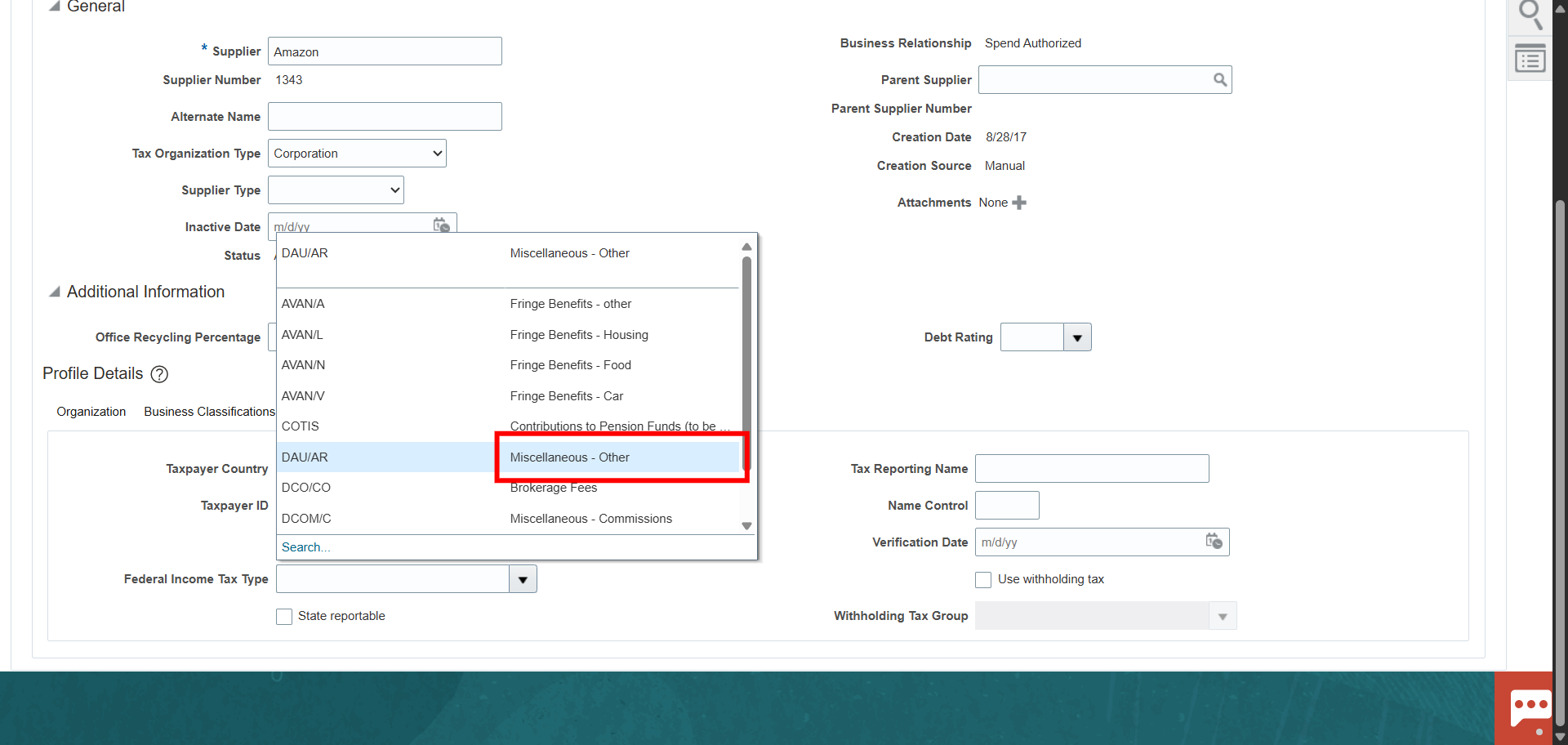
Step 15
If the tax reporting name is different from the supplier name, enter the same in the Reporting Name field in the Tax Reporting Region. Payables uses the Reporting Name to produce documents for the IRS or the applicable tax authorities.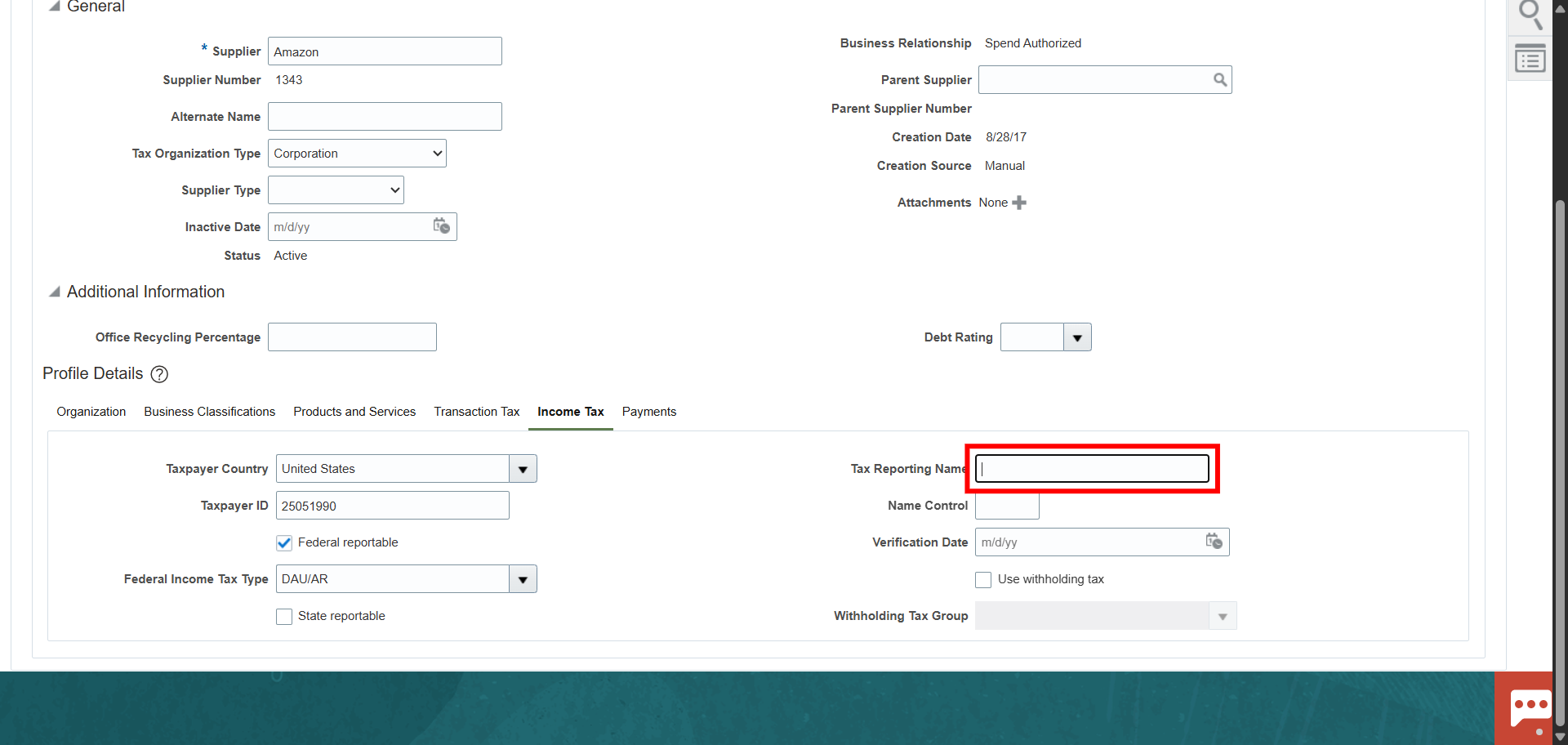
Step 16
To enable Withholding Tax, select the checkbox against the Use Withholding Tax option.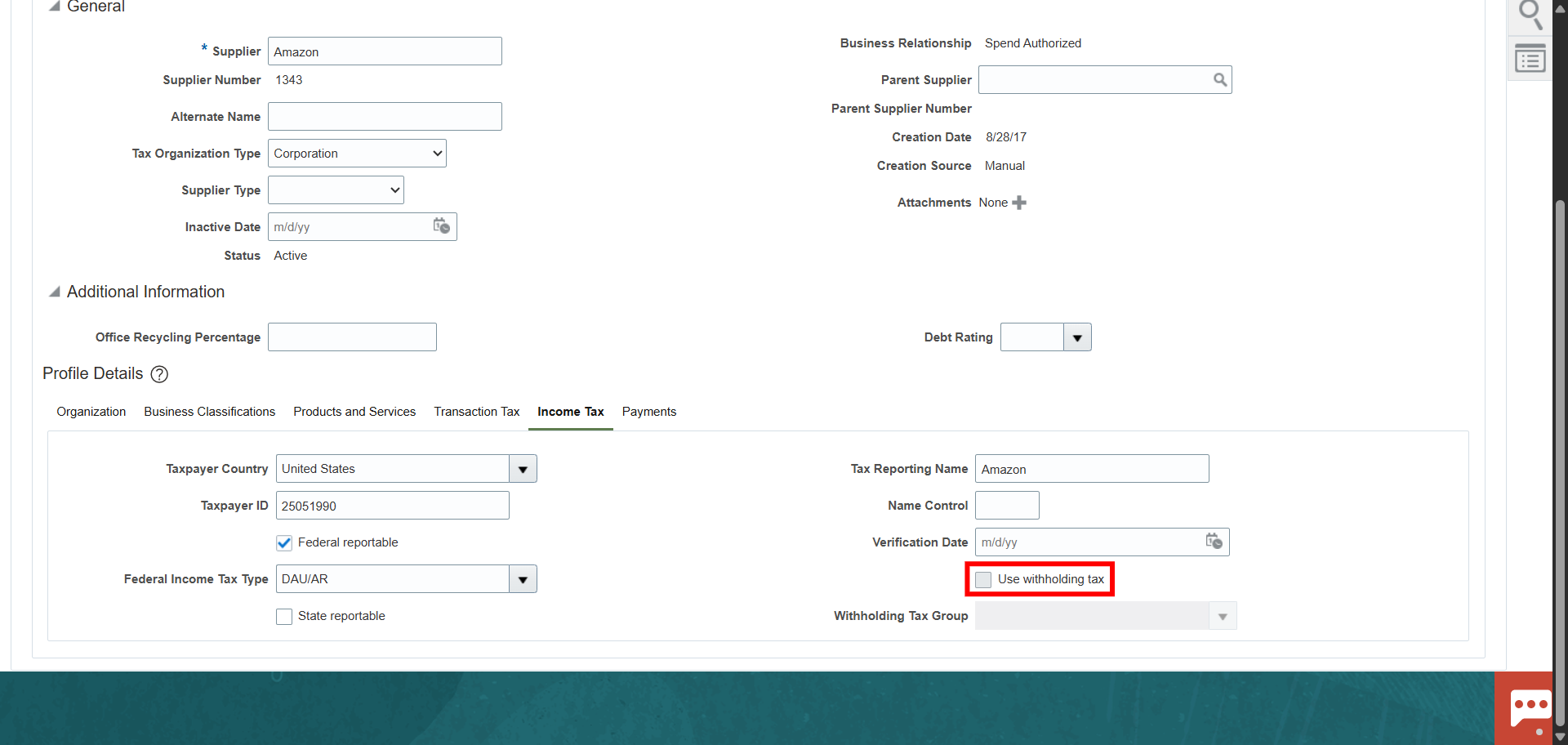
Step 17
After enabling the Use Withholding Tax option, select a rate at which tax is to be deducted from the list of values against the Withholding Tax Group field.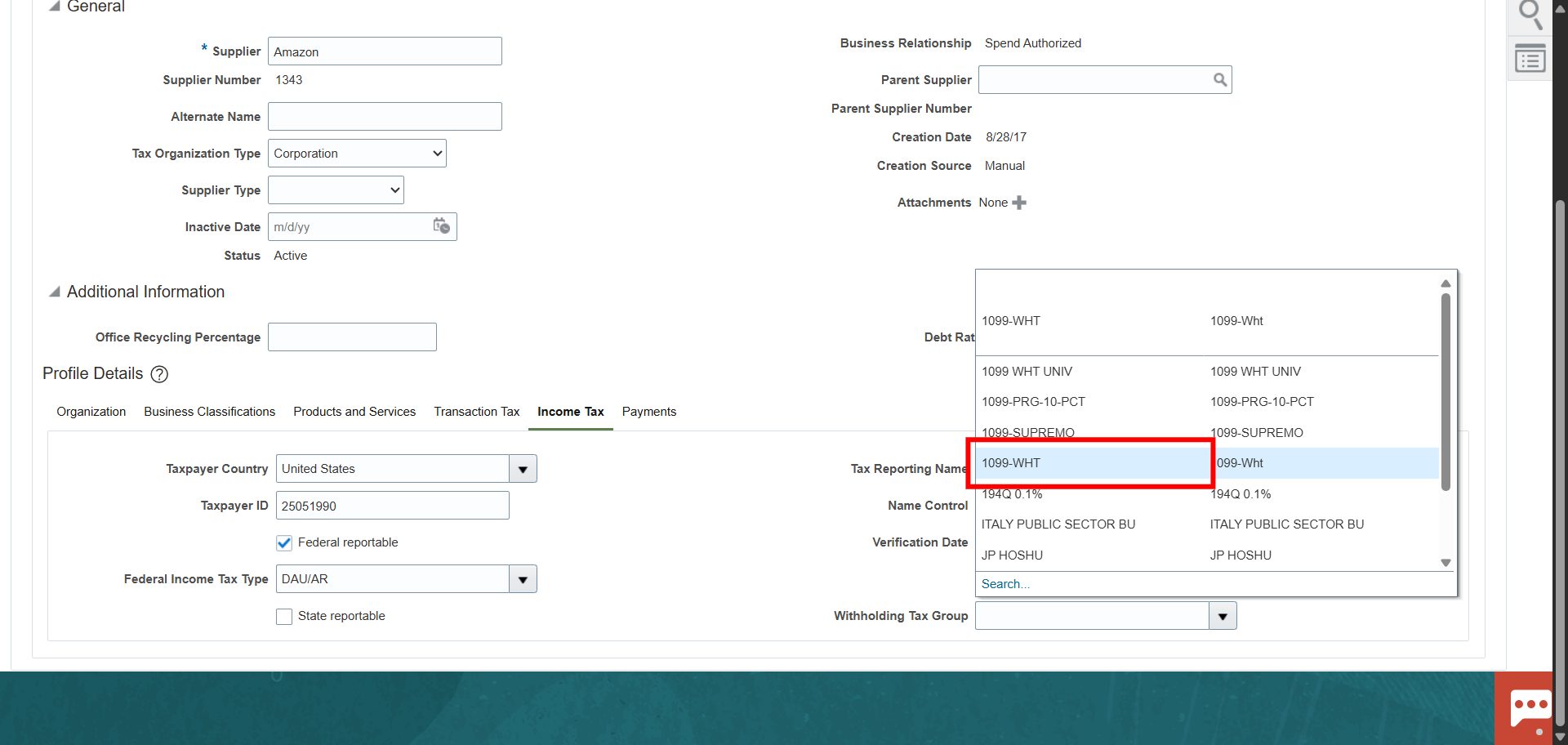
Step 18
Once all the withholding tax details are entered, click on the Submit button to save and initiate change request approval for enabling withholding tax.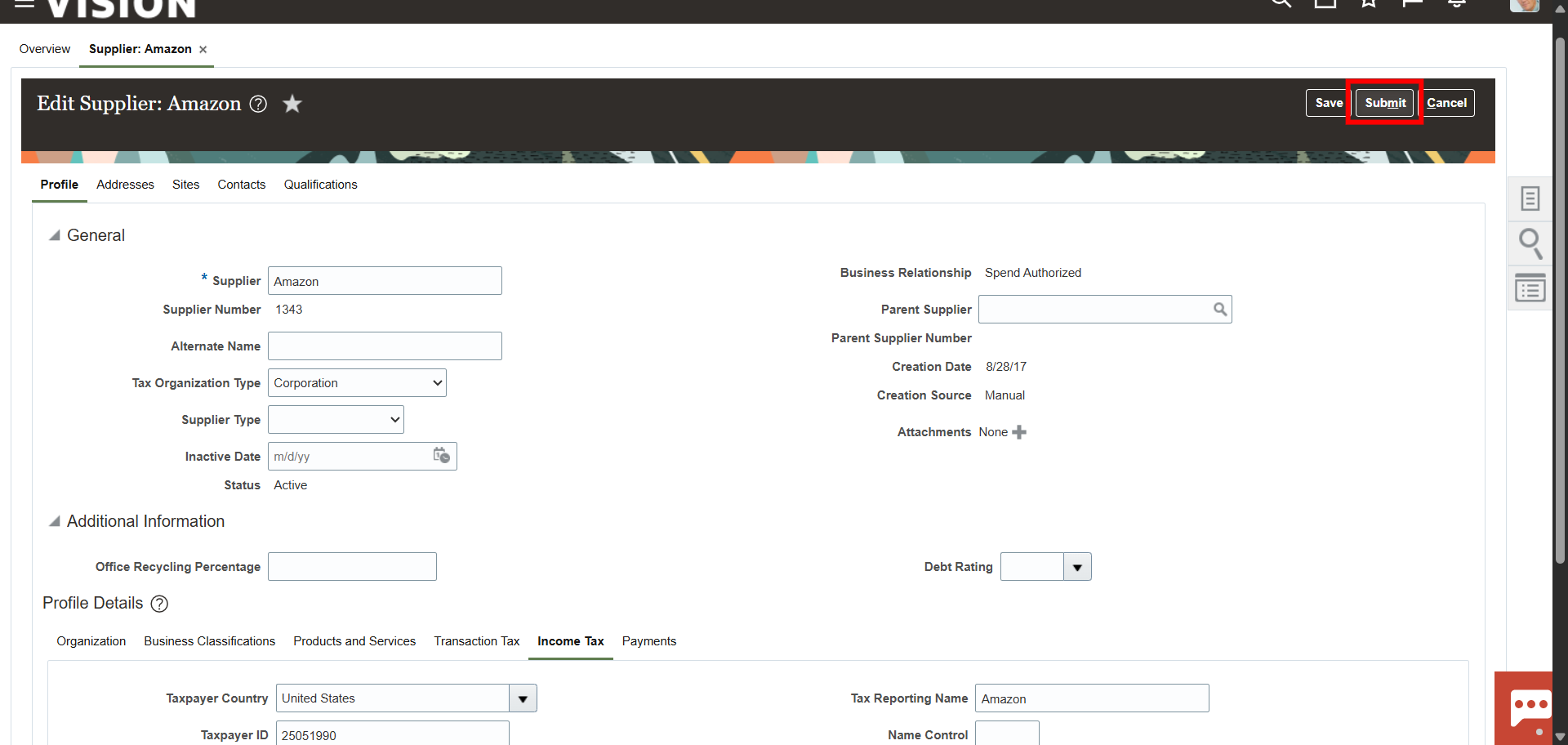
Step 19
Upon submission, a confirmation message of the change request submitted for approval will be displayed along with the approval notification number. Click on the OK button to continue.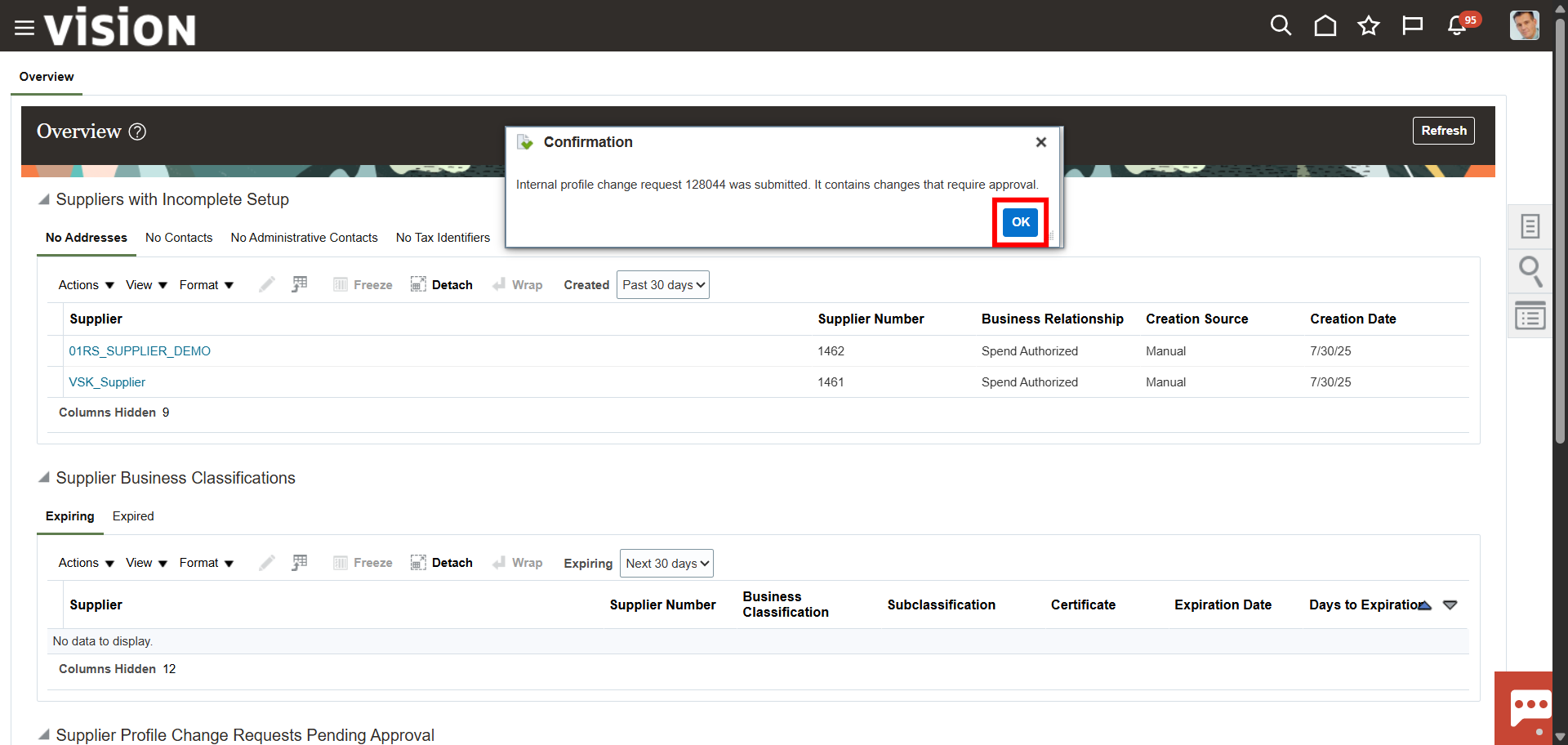
Step 20
After the submission is complete, refresh the page to look for the request you placed and check its status.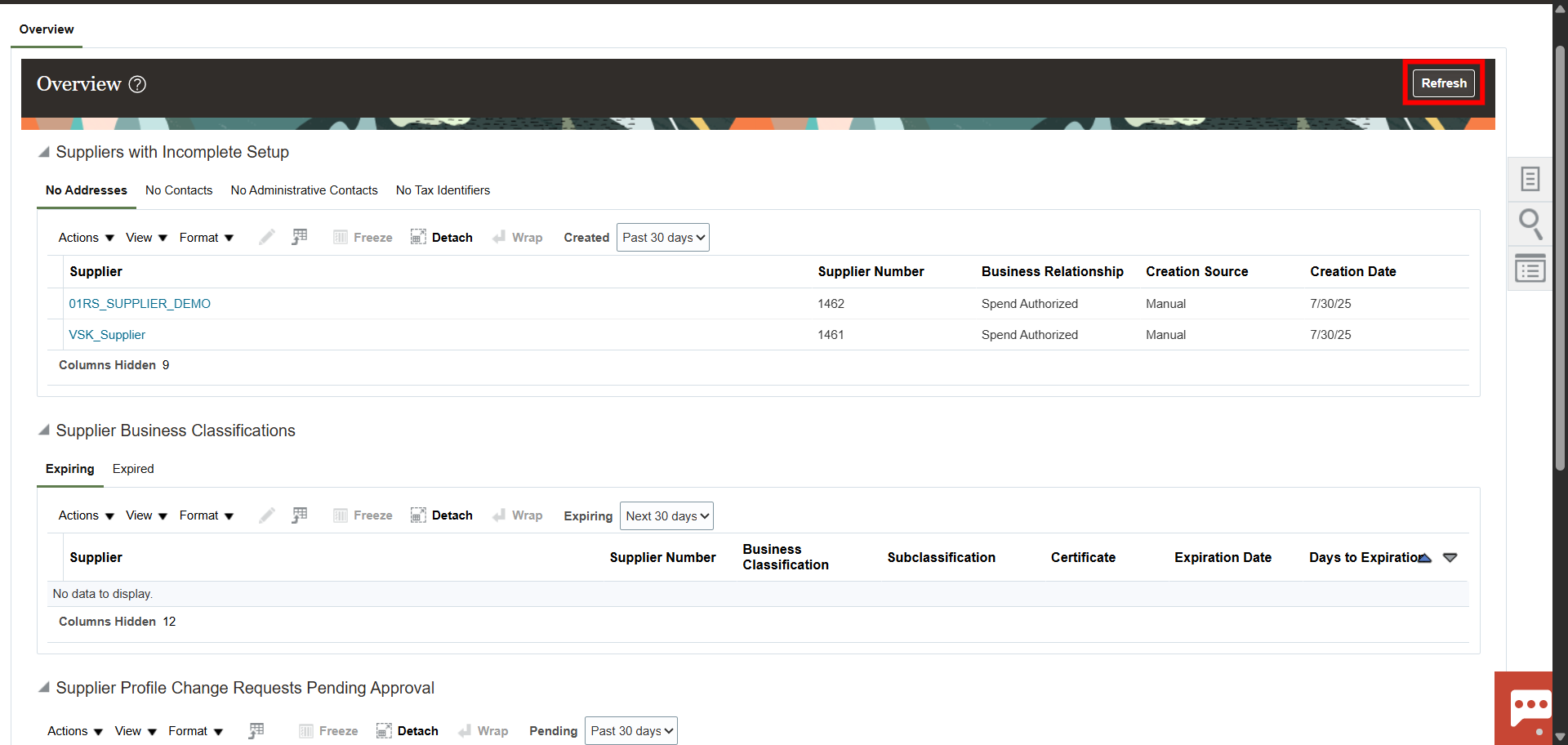
Step 21
Once the page is refreshed, you will now be able to see your request under Supplier Profile Change Requests Pending Approval. Click on the Request number hyperlink to see more details of the change request, such as the approver and initiator details.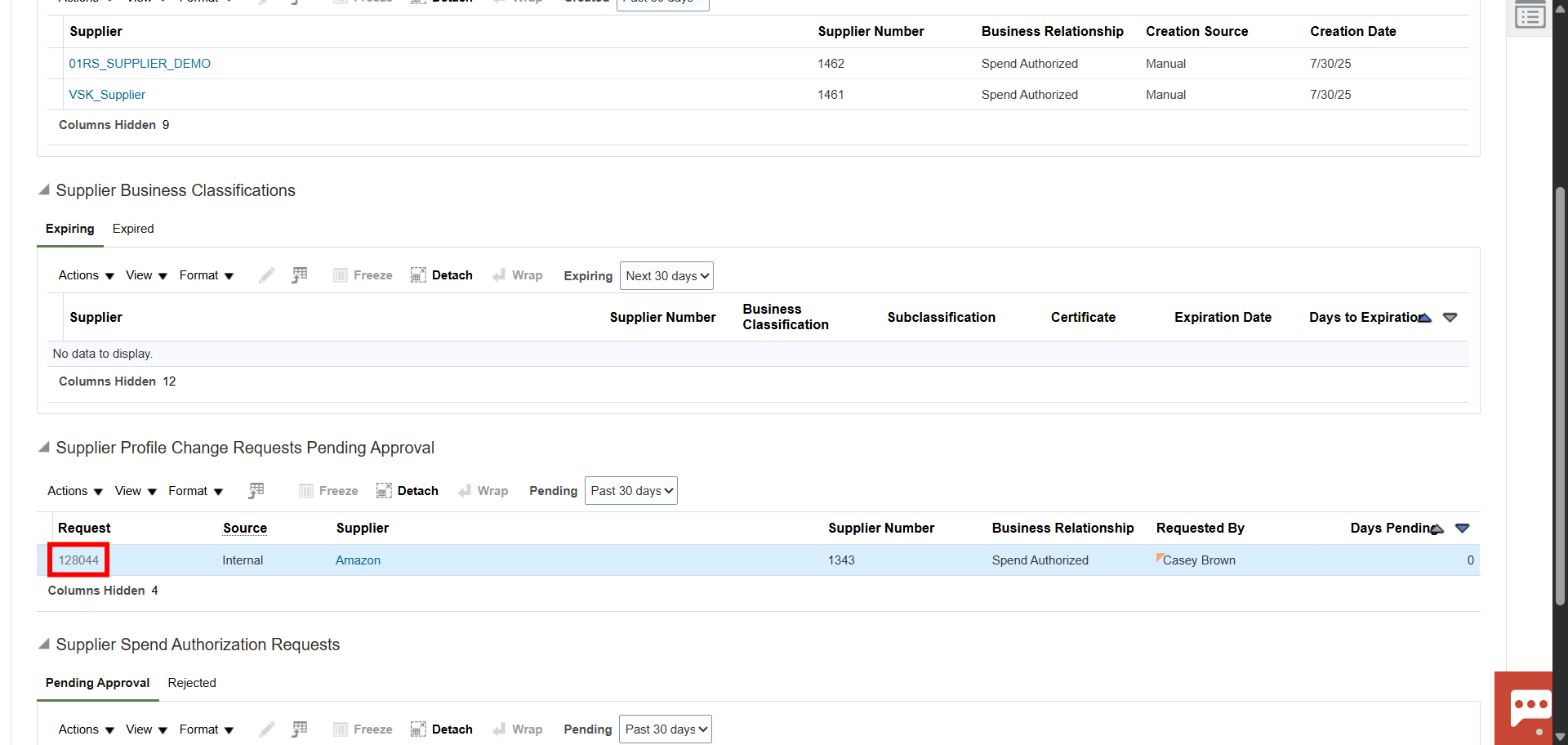
Step 22
Upon opening the change request, the details of Requested date, requested by, and changes requested along with approval history is visible on this page.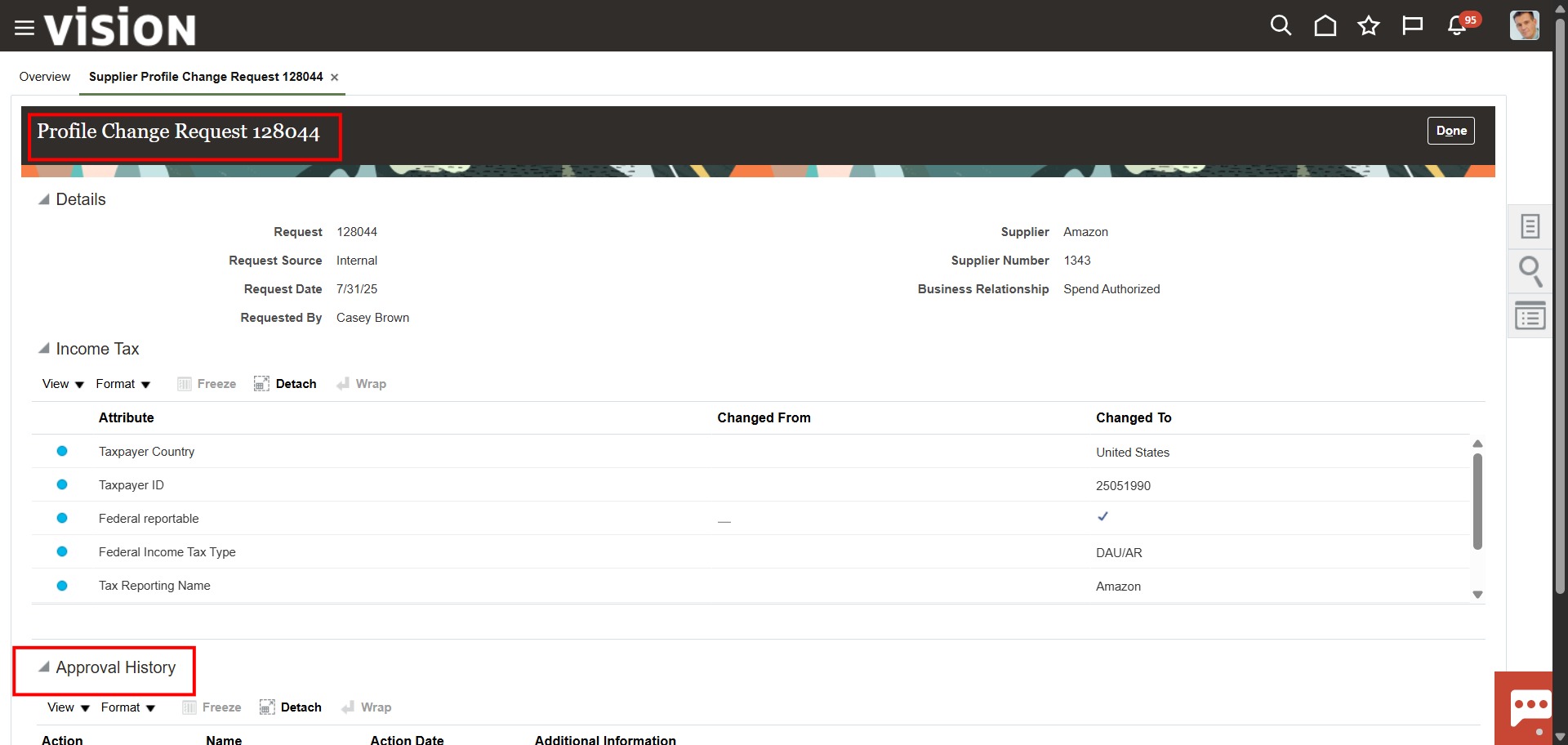
Step 23
After reviewing the change request details, click on the Done button to return to the Suppliers workbench.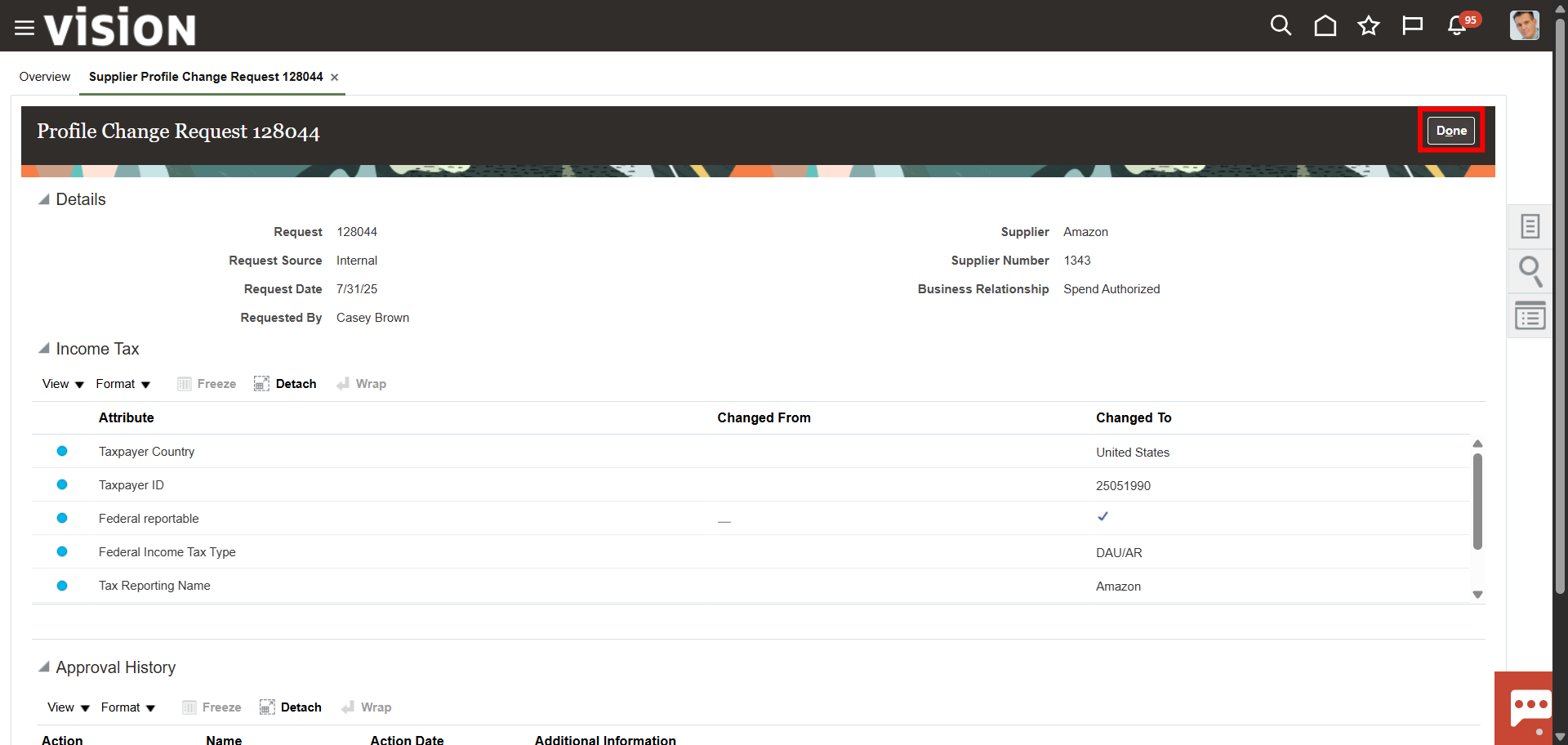
Step 24
After receiving the approval for the supplier profile change, open the required supplier site to enable withholding tax at the site level.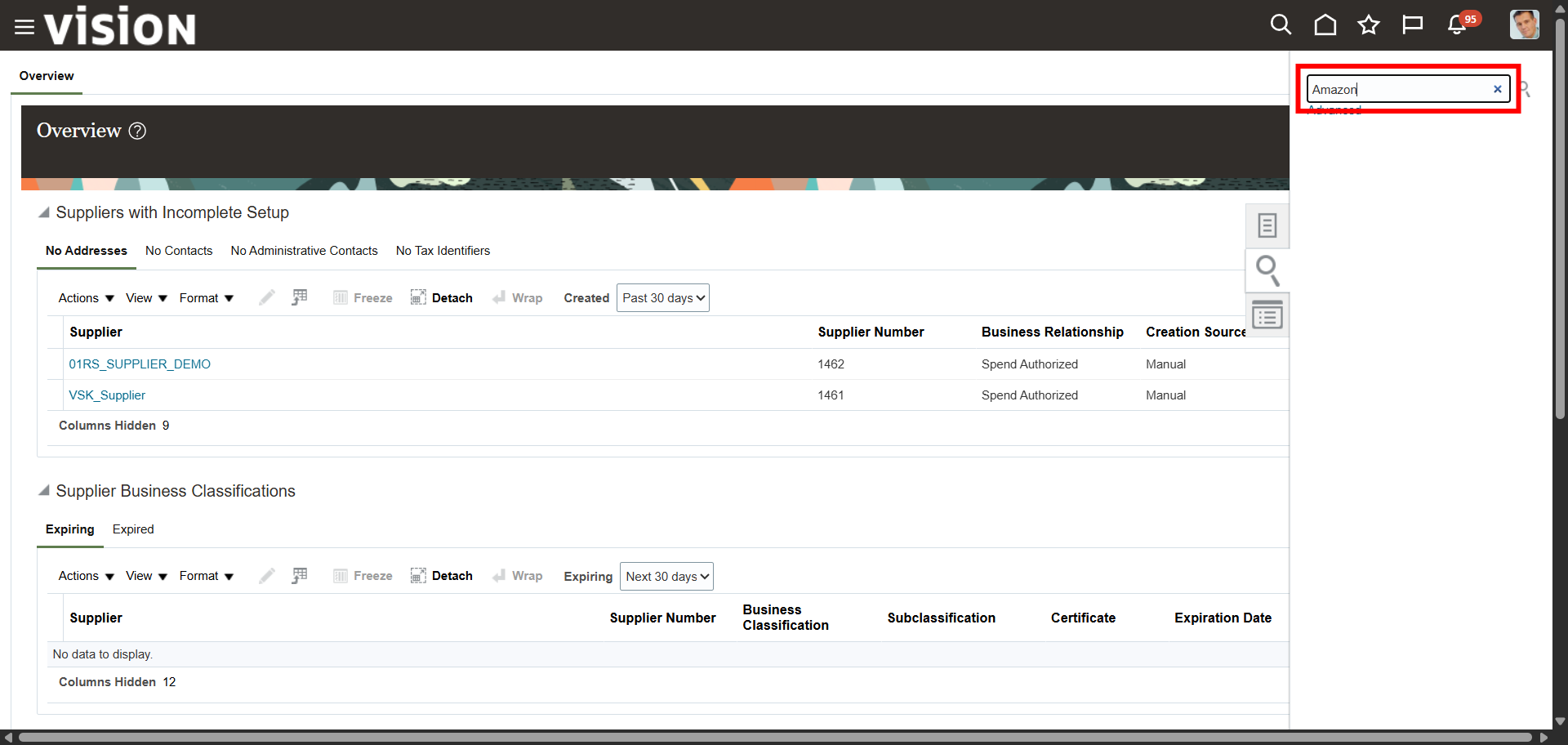
Step 25
To make modifications to the supplier site, click on Edit at the upper right corner to open the supplier site in edit mode.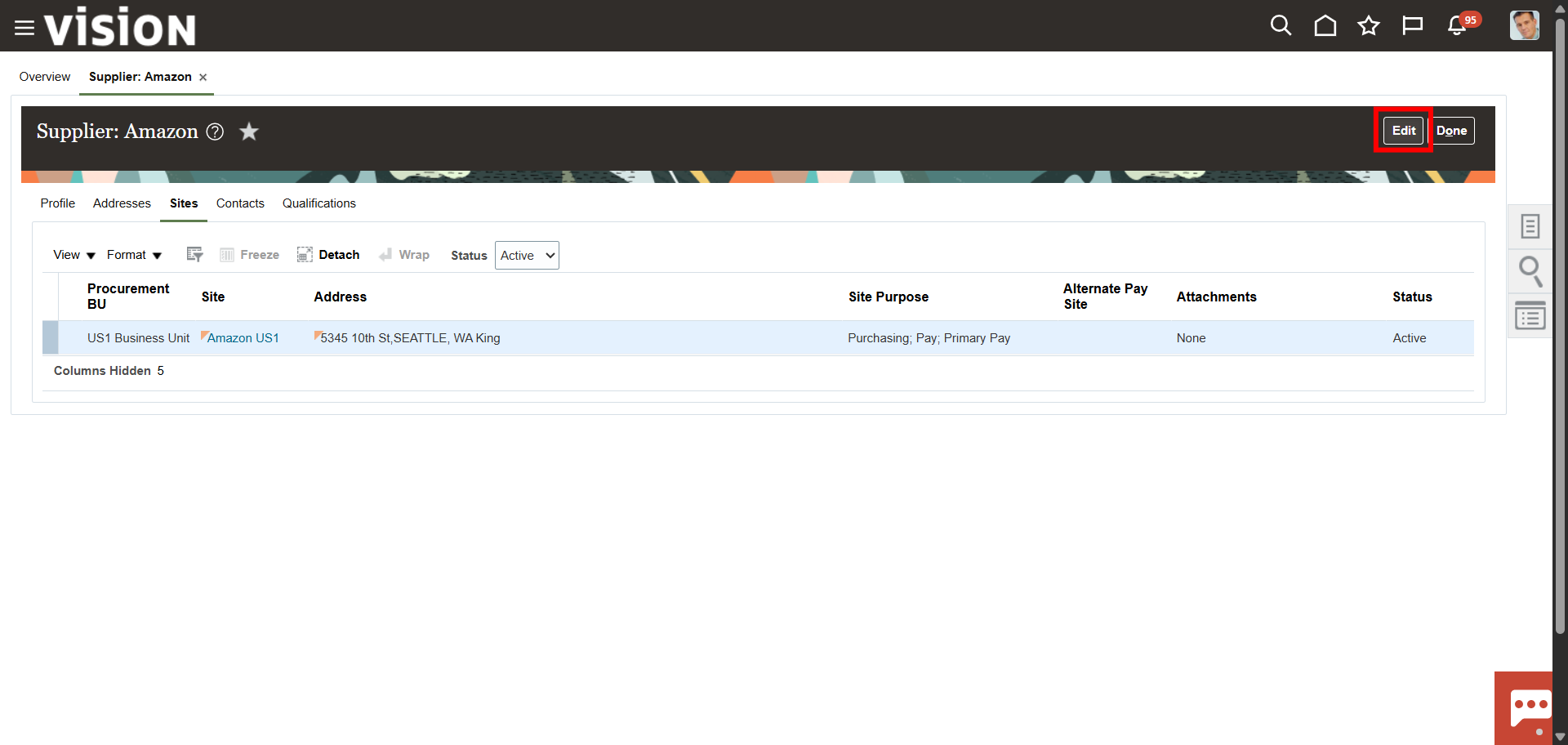
Step 26
Once in edit mode, click on the site name hyperlink to access site-specific settings.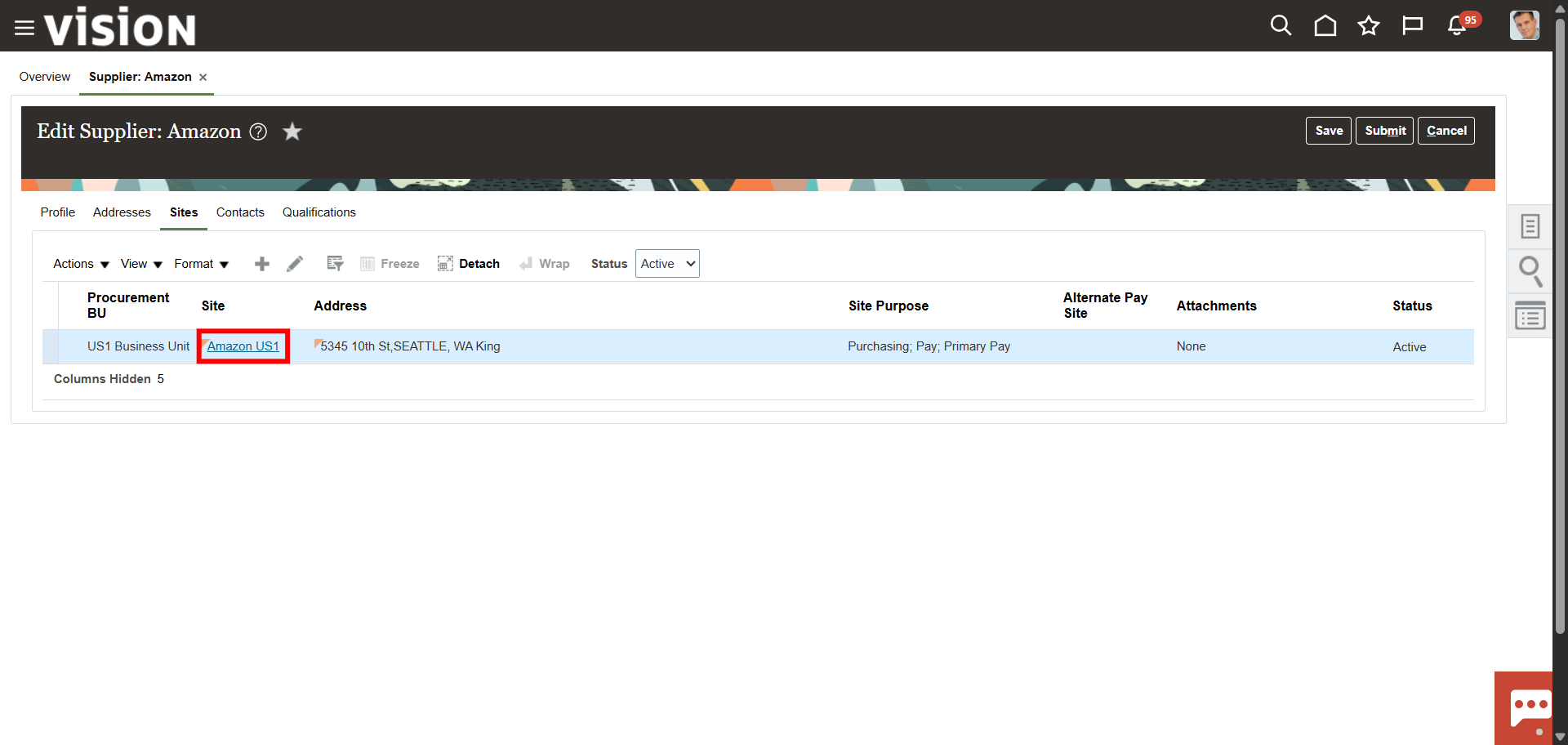
Step 27
In the site settings, check the Allow Withholding option if you want to enable withholding tax at the site level.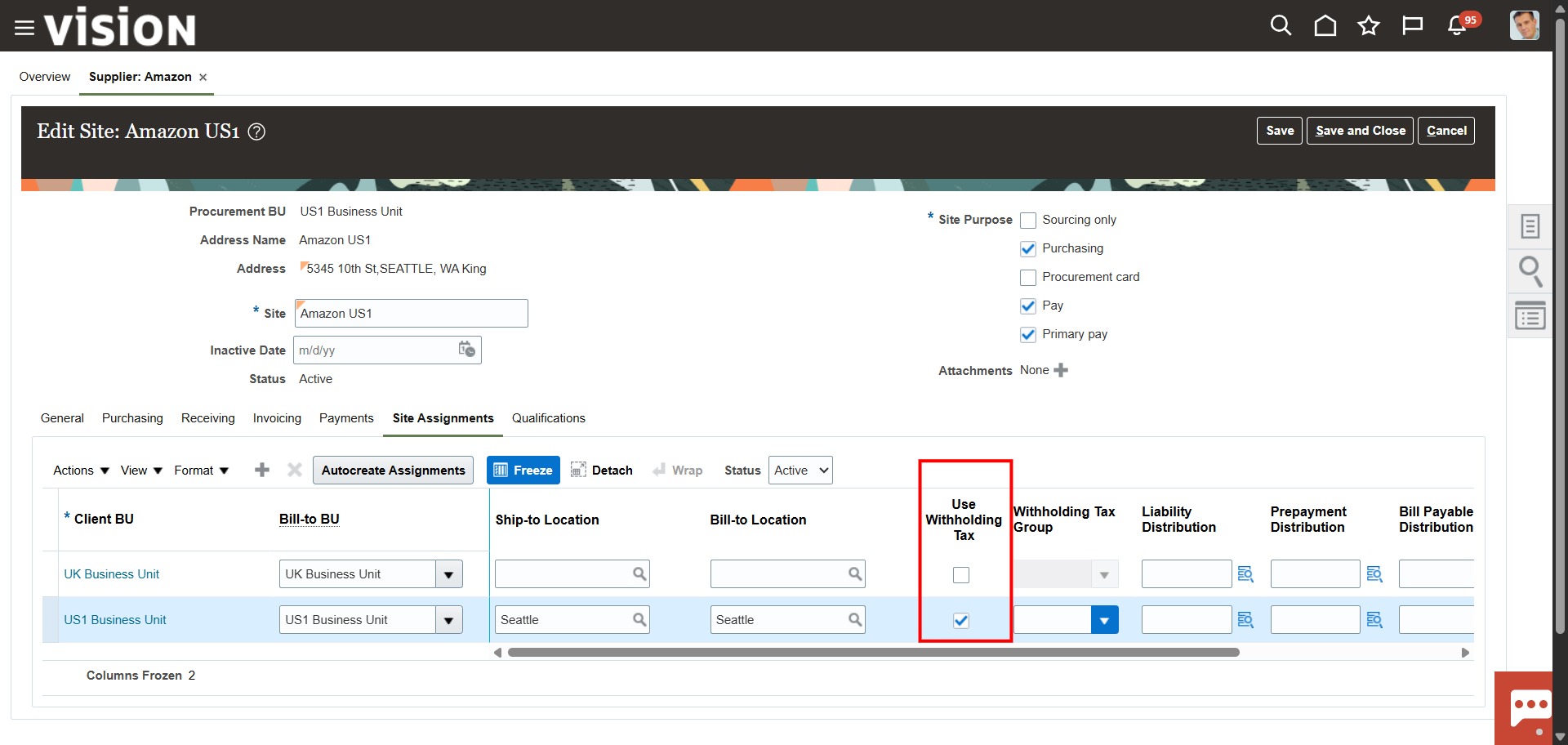
Step 28
After enabling the Allow Withholding option, select a default Withholding Tax Group that Payables will default to all invoices you enter for this supplier site.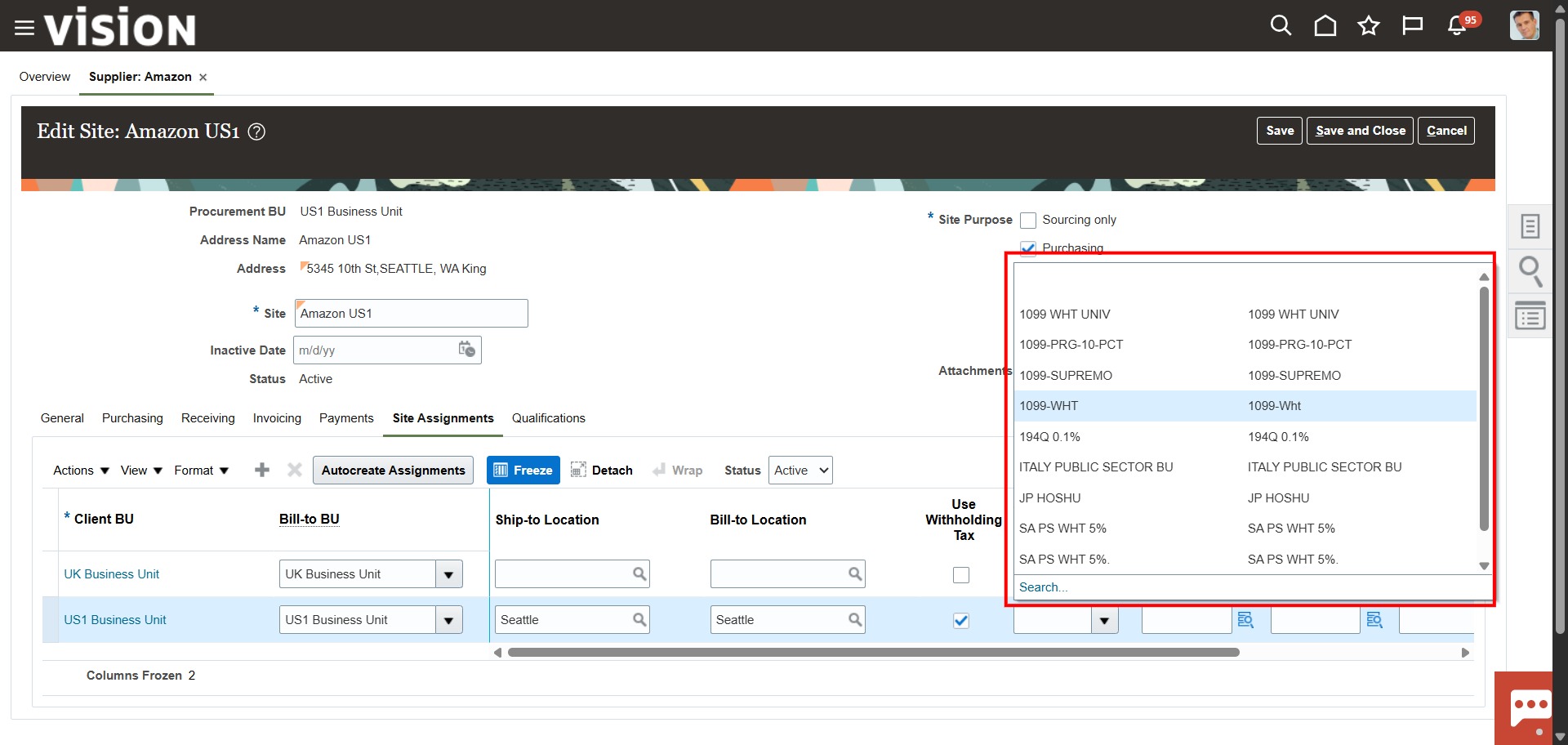
Step 29
Once all the site-level withholding tax settings are configured, click on the Save and Close button to proceed further and preserve your changes.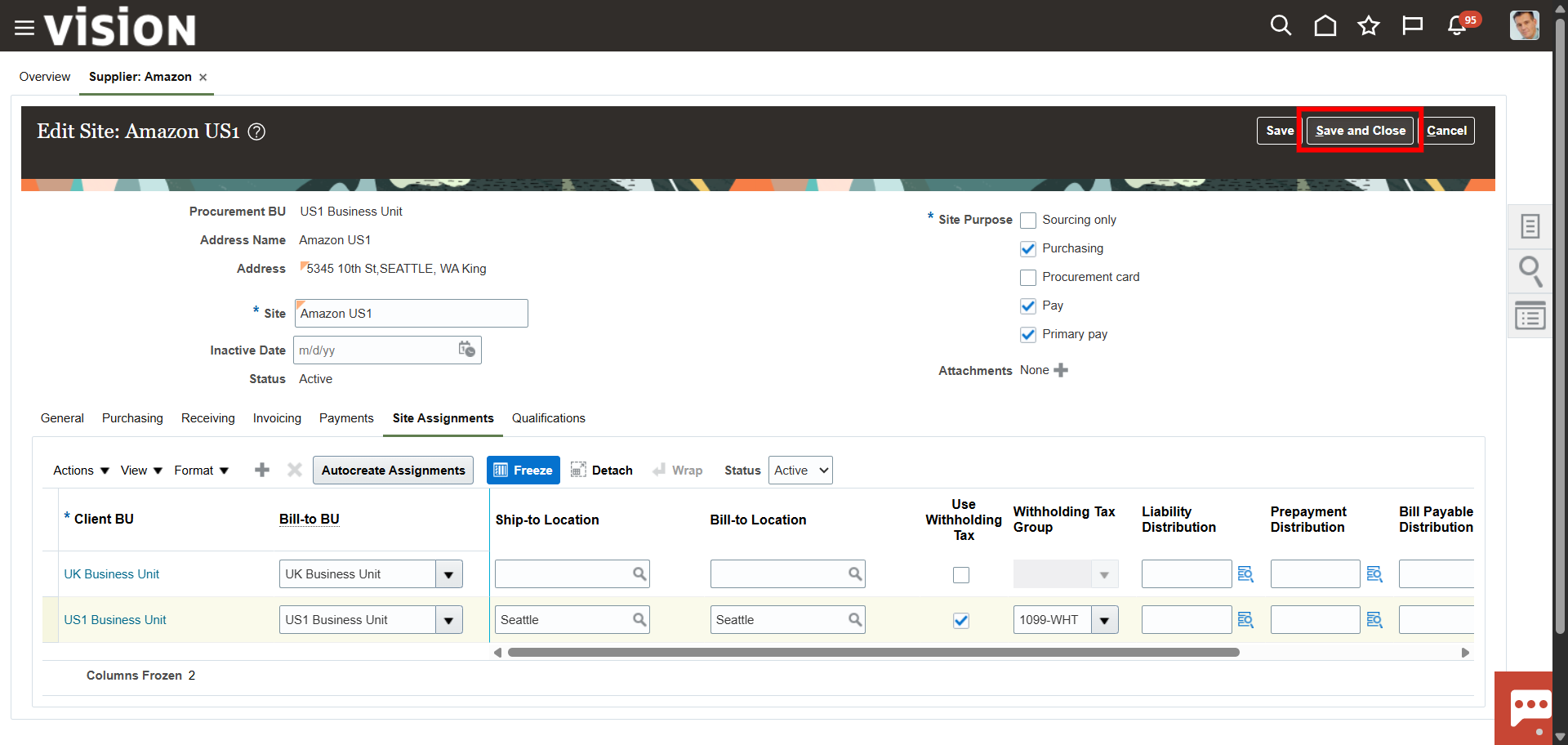
Step 30
Upon saving, a confirmation message saying Your changes were saved would show up, confirming that your changes have been preserved.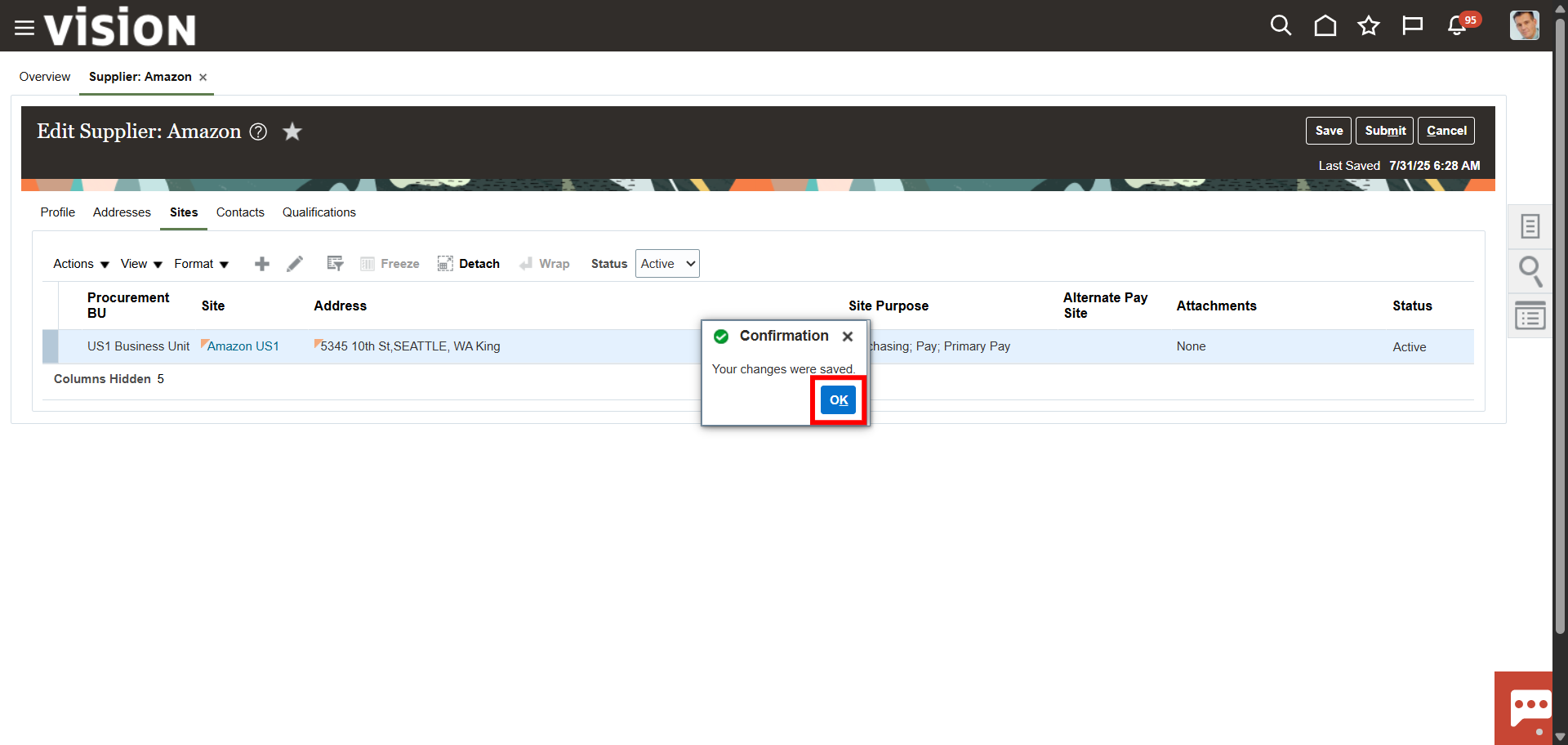
Step 31
To finally submit this change and complete the withholding tax enablement process, click on the Submit button to complete the process.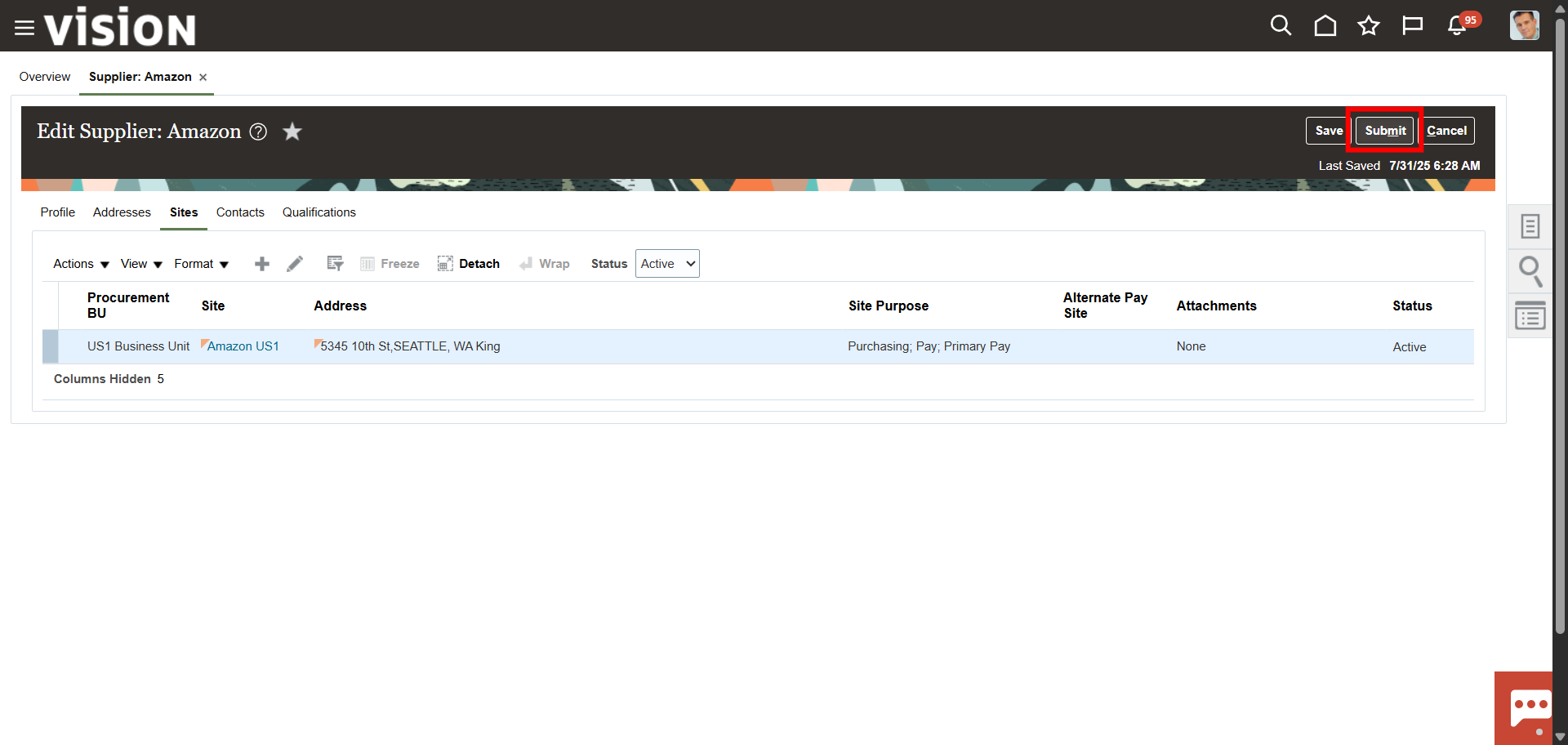
Step 32
Thank You! In this guide you learnt how to enable CIS tax on supplier in Oracle Fusion Procurement module.